Quick Start
Start by installing Tapicker and signing in, then try a shared Workflow. This guide also shows you how to export collected data and create a Workflow of your own.
Install Tapicker
Choose your browser and install Tapicker from its extension store.
Install in Chrome
- Open the Chrome Web Store and search for Tapicker.
- Select Tapicker from the results, click Add to Chrome, and confirm the installation.
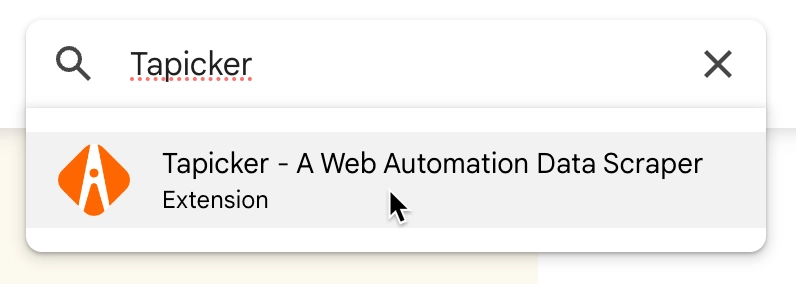
Want to skip the search? Open Tapicker's Chrome Web Store page directly.
Install in Edge
- Open the Edge Add-ons Store and search for Tapicker.
- Select Tapicker from the results, click Get, and confirm the installation.
You can also open Tapicker's Edge Add-ons page directly.
Pin Tapicker for Easy Access
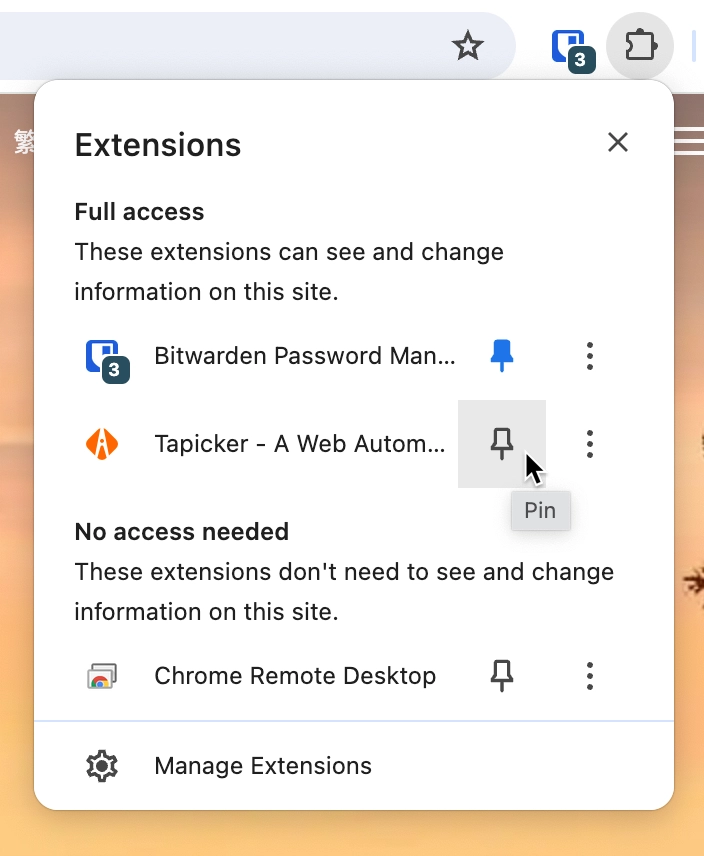
In Chrome, click the Extensions icon in the toolbar, find Tapicker, and click the pin icon. You can pin Tapicker in Edge in the same way.
Sign Up or Sign In
Click the Tapicker icon in your browser toolbar. You'll need an account to use Tapicker. If you're new, select Sign Up and create an account. If you already have one, select Sign In. Once you're signed in, return to Tapicker to continue.

Play a Workflow
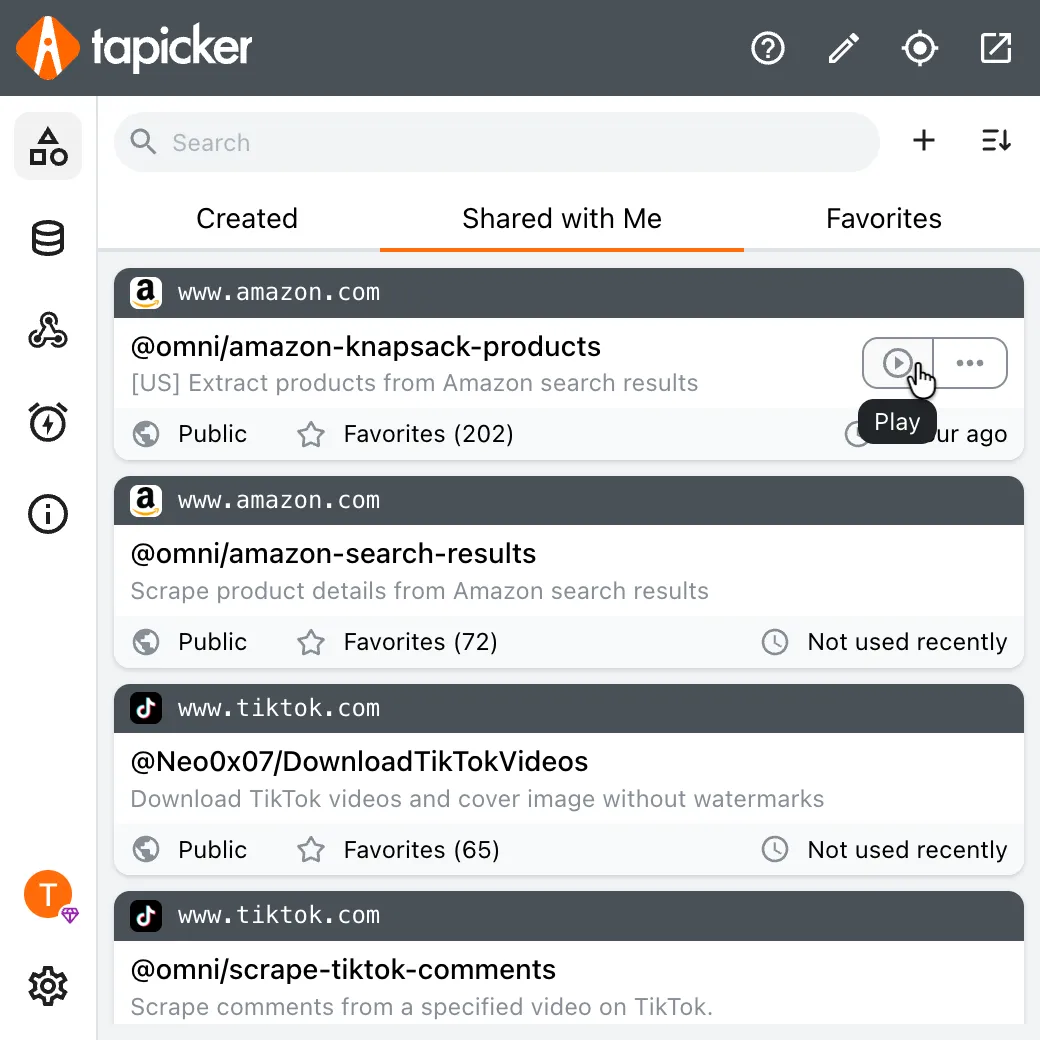
If this is your first time using Tapicker, you may not have created a Workflow yet. In Workflows, open the Shared with Me tab to explore Workflows shared by other users. Many are ready to run for free.
Choose one that interests you, hover over its card, and click Play. If it asks for inputs, fill them in and confirm to start the Workflow.
Export Data (Optional)
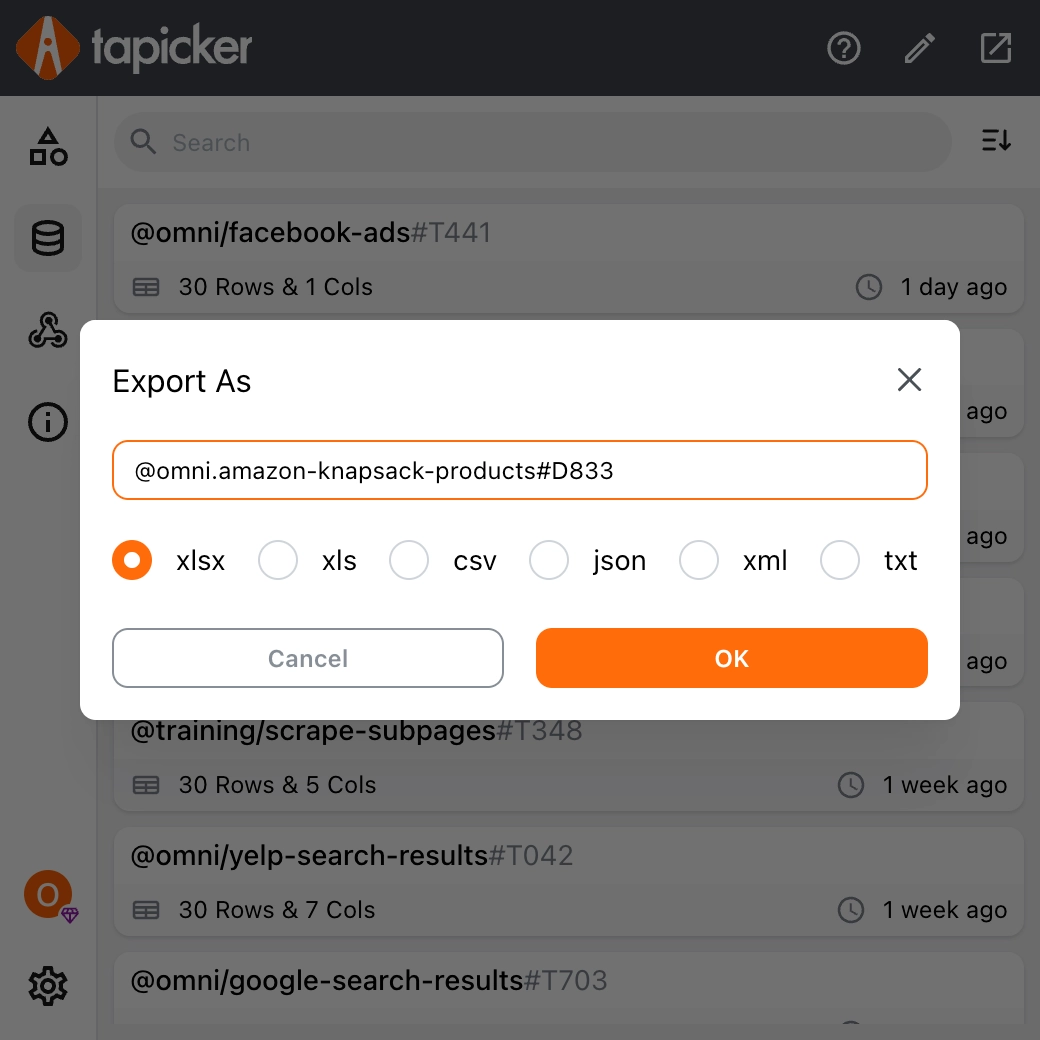
If the Workflow you ran extracts data, the results will appear under Data in the left sidebar. Open the More menu for the data you want to save, then select Export. Choose a format such as xlsx or csv, and click OK to download the file.
Create a Workflow
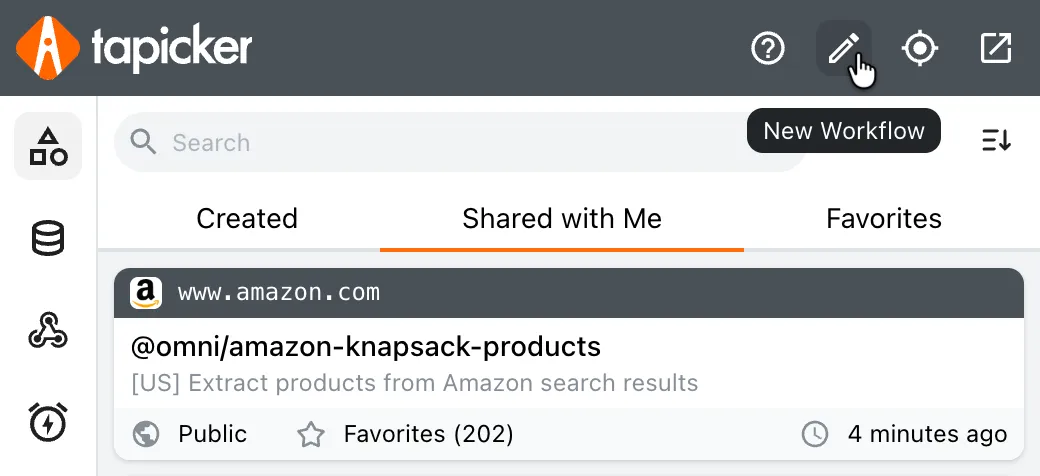
If the shared Workflows don't quite fit what you want to do, you can create your own. Click New Workflow (the pencil icon at the top of Tapicker) to open the editor.
Follow Create your First Workflow to build and run your first Workflow step by step.