Wait Until
In this section, we will guide you on how to use the Wait Until block.
Use Cases
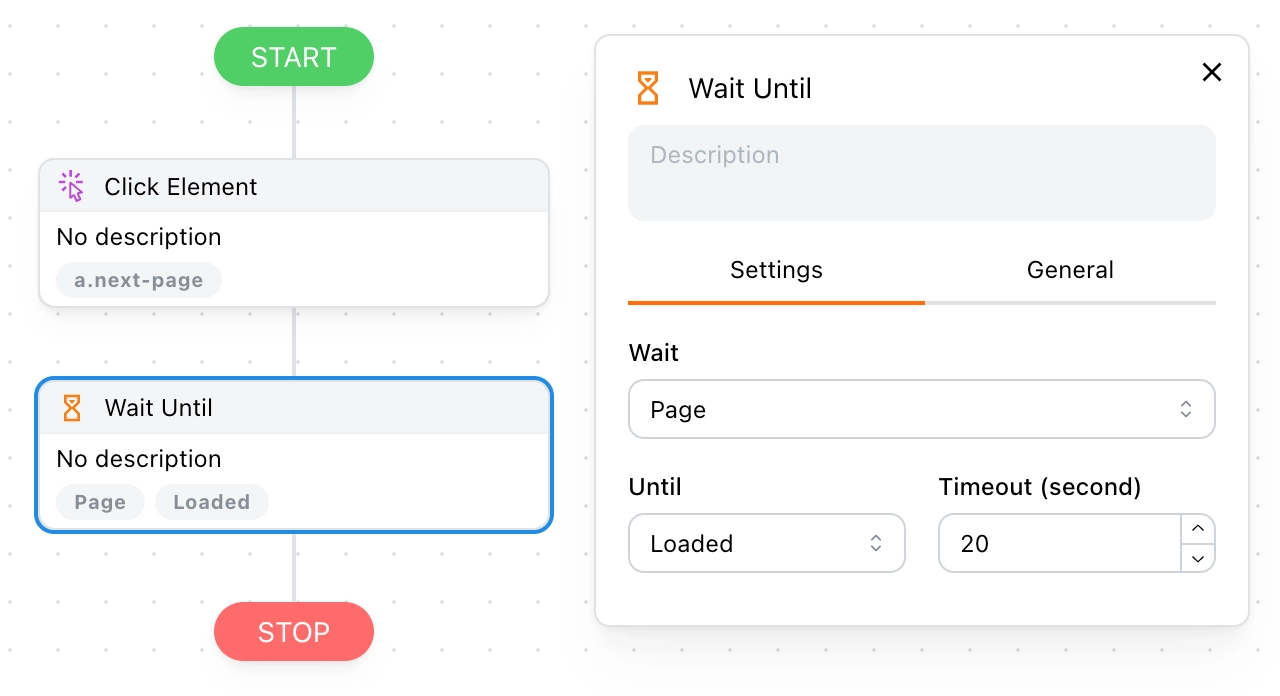
This block comes in handy when you interact with a page, and the page undergoes changes, requiring you to wait until the changes are complete.
Example
For instance, when you click the pagination navigation button to jump to the next page, you need to wait until the page has fully loaded.
💡 Note:
Why not use the Sleep block? When a page reloads, the time it takes is affected by the network and is not constant. Therefore, using the Wait Until block is smarter.
Next, we will discuss the applicable scenarios for different option combinations in detail.
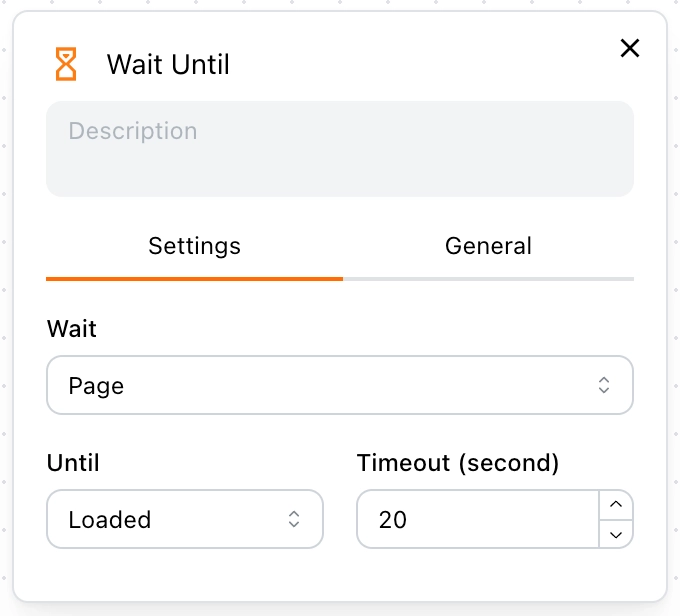
Wait Until Page Loaded
Use the following option when you interact with a page, and the entire page undergoes changes, i.e., the page refreshes.
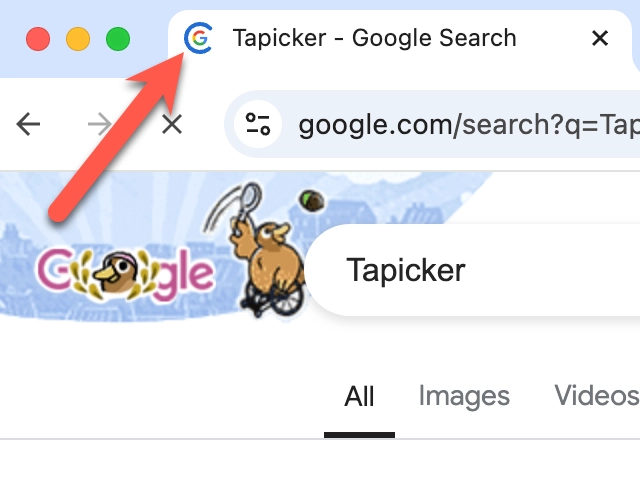
How to Determine if the Page Has Refreshed?
For example, search for "Tapicker" on Google, and after pressing the Enter key, notice the small icon on the tab. If it shows a loading animation, it means the page has refreshed.
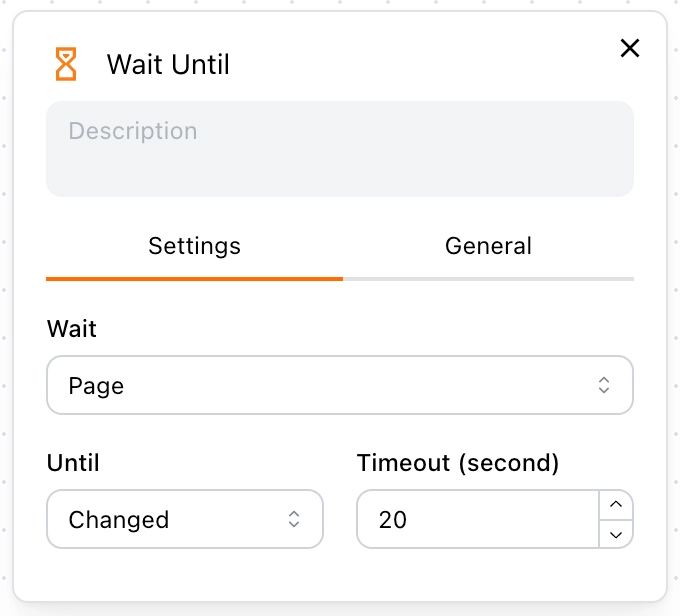
Wait Until Page Changed
Use the following option when you interact with a page, and only part of the page undergoes changes.
How to Determine if the Page Has Partially Changed?
Contrary to the above example, if the small icon on the tab does not show a loading animation after interaction, it means the page has partially changed.
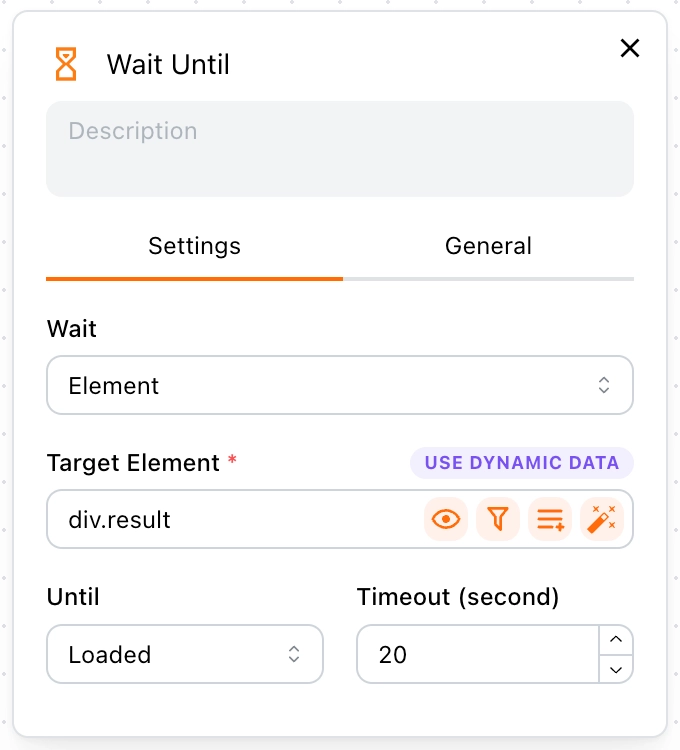
Wait Until Element Loaded
Use the following option when you interact with a page, and you need to wait for a specific element to appear before proceeding with the next block.
For example, if data loading is delayed, you need to wait until a specific element has loaded (indicating that the data has been rendered) before scraping data from the page. Otherwise, you might scrape empty data.
Wait Until Element Changed
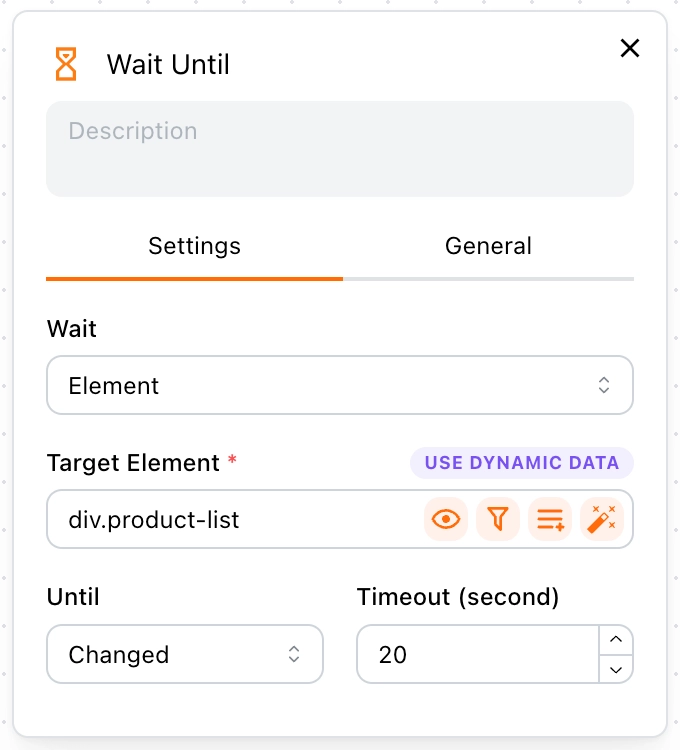
This is a more refined version of Wait Until Page Changed, allowing you to monitor which specific element has changed.
For example, after navigating to the next page, wait until the product list changes, and then scrape the data.
Wait Until Variable Assigned
When a variable is not immediately available but is set asynchronously later, you should check whether the variable is available before accessing it.
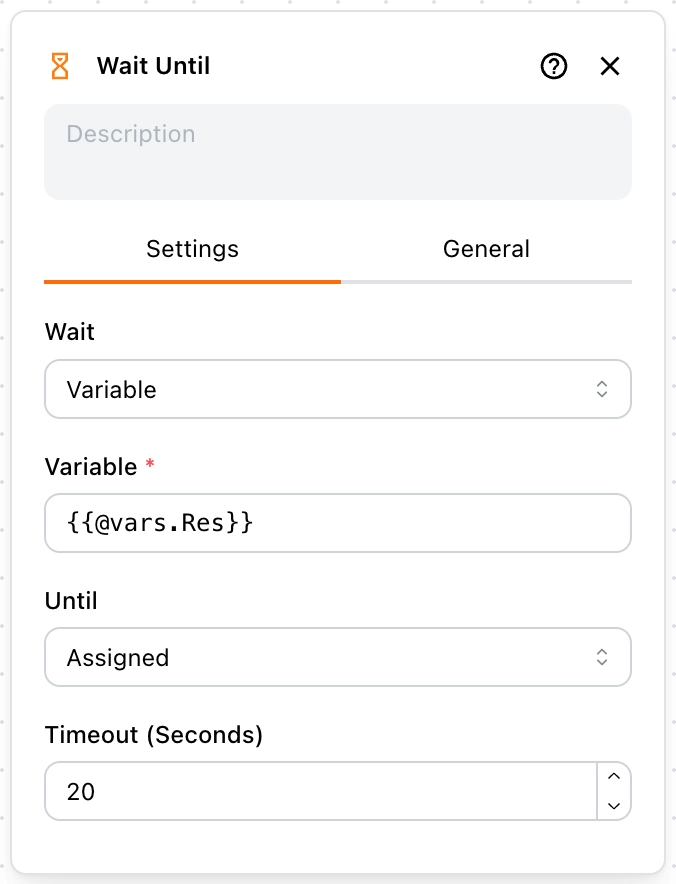
For example, when using the HTTP Monitor block and disabling the Wait for Completion option, you might need to detect the variable this way.
Wait Until Variable Changed
Similar to the previous case, but this one checks whether the new value is different from the old value. If they are not equal, it indicates that the variable has changed.
Wait Until URL Changed
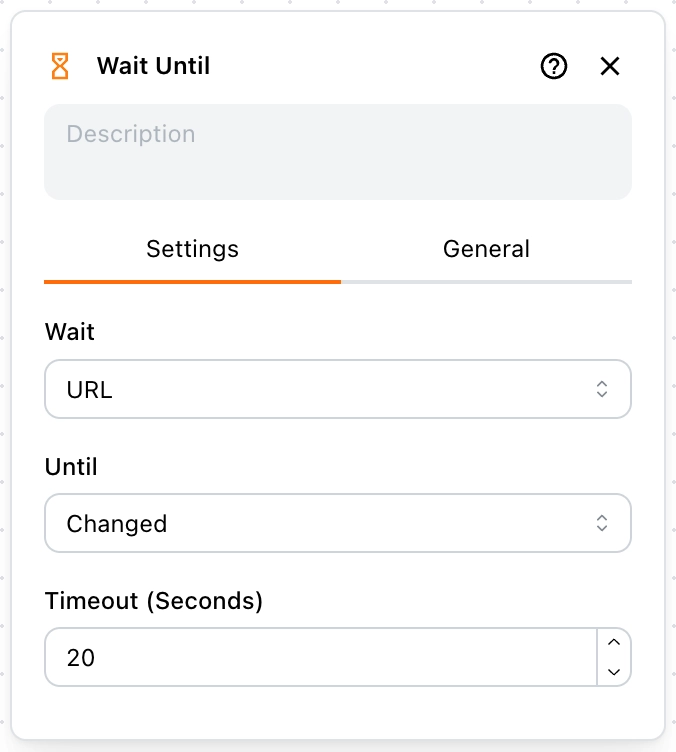
When you click a link or button on a page, the browser may navigate to another page or perform a redirect. Before executing the next step, you usually need to wait until the navigation is completed.
Use Wait Until URL Changed to pause the workflow until the page URL changes, then continue with the next step.
Wait Until URL Matched
If you want to perform actions only after navigating to a specific page, you can use Wait Until URL Matched.
You can define a URL matching rule. When the current page URL matches this rule, the waiting will stop and the next step will be executed.
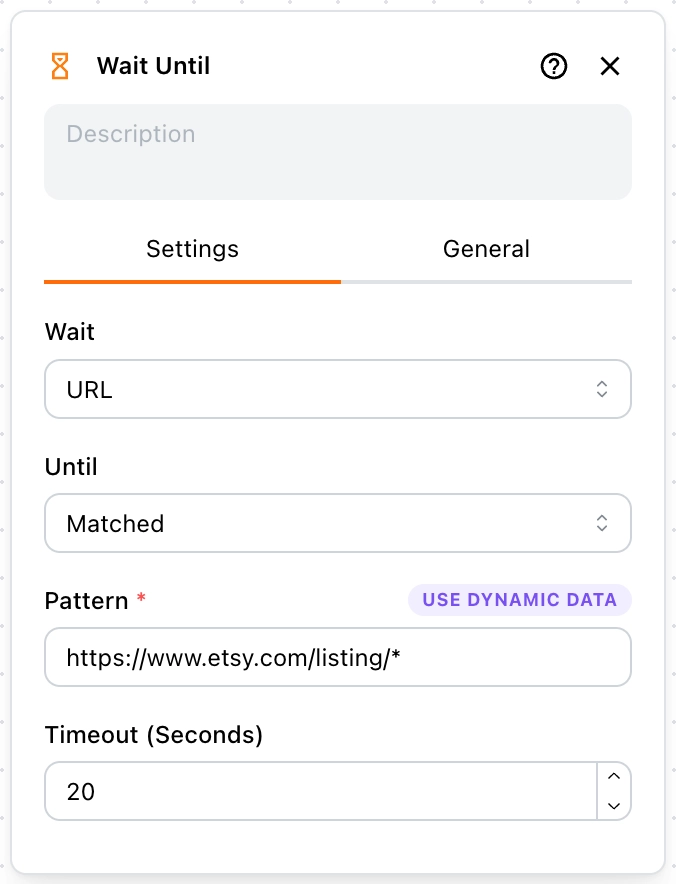
Pattern
You need to define a rule to match the URL. Wildcards using * are supported.
For example:
https://www.etsy.com/listing/*
This pattern matches any URL that starts with https://www.etsy.com/listing/.
For more pattern rules, please refer to: URLPattern.