Create your First Workflow
Let's build a Workflow that searches Google for "Tapicker". You'll add three essential Blocks and one optional Block, then run the Workflow to see them in action. No code is needed.
What You'll Build
Your Workflow will:
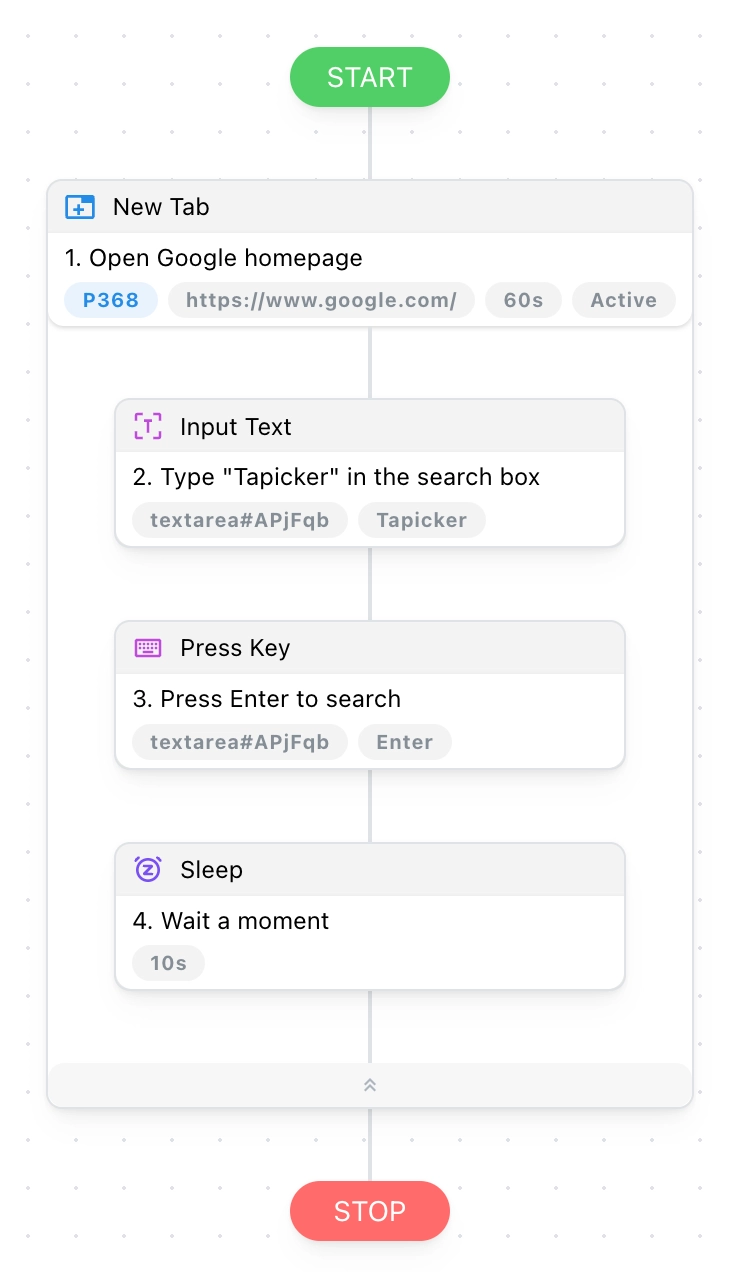
- Open Google in a new tab.
- Enter "Tapicker" in the search box.
- Press Enter to start the search.
- Optionally keep the tab open for 10 seconds so you can see the results.
Build the Workflow
Open Tapicker and click New Workflow (the pencil icon) to open the Workflow Editor. Now let's add the Blocks in order.
Step 1. Open Google
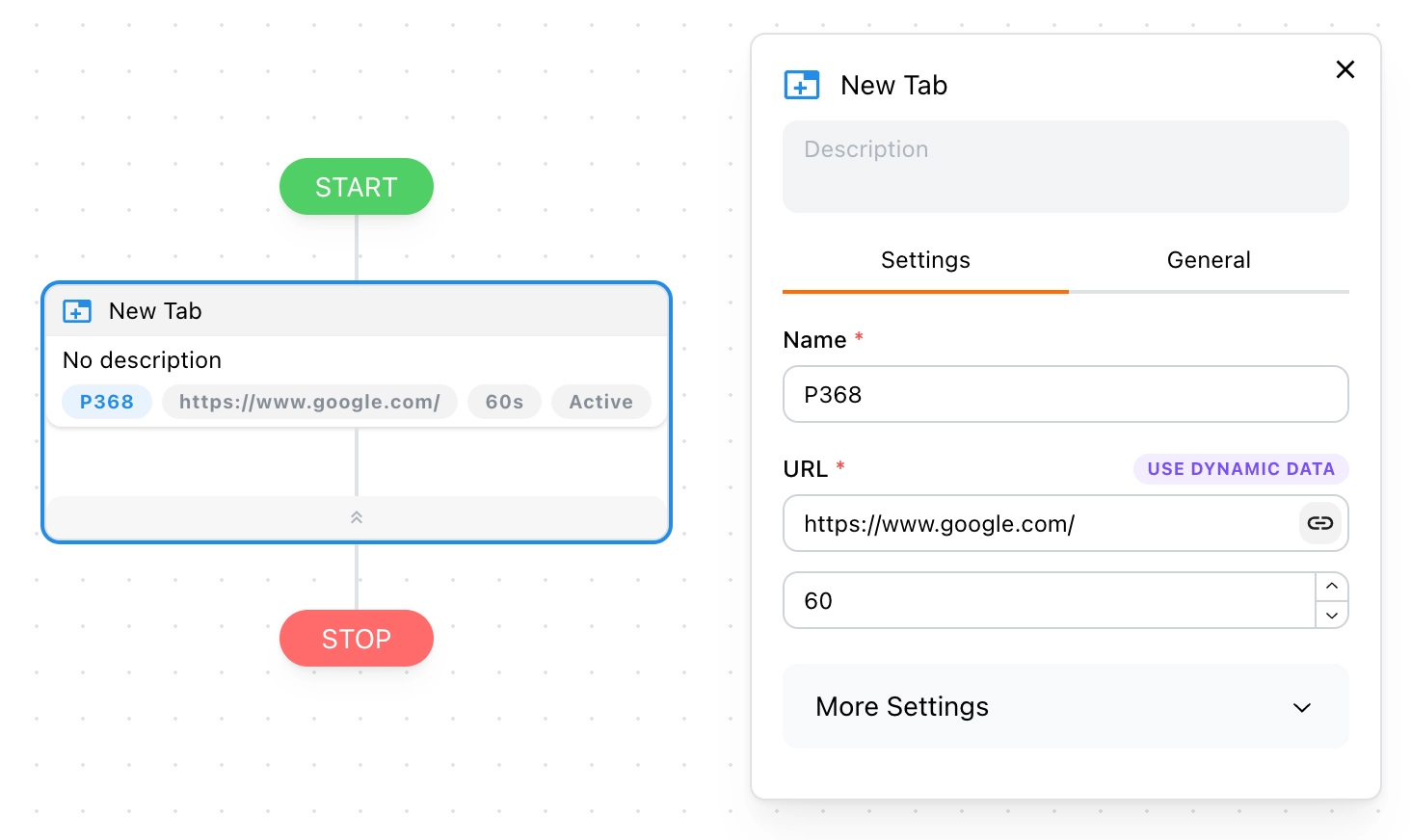
Drag the New Tab Block onto the canvas and enter https://www.google.com/ as its URL. The Blocks you place inside New Tab will run in that tab.
Step 2. Enter "Tapicker"
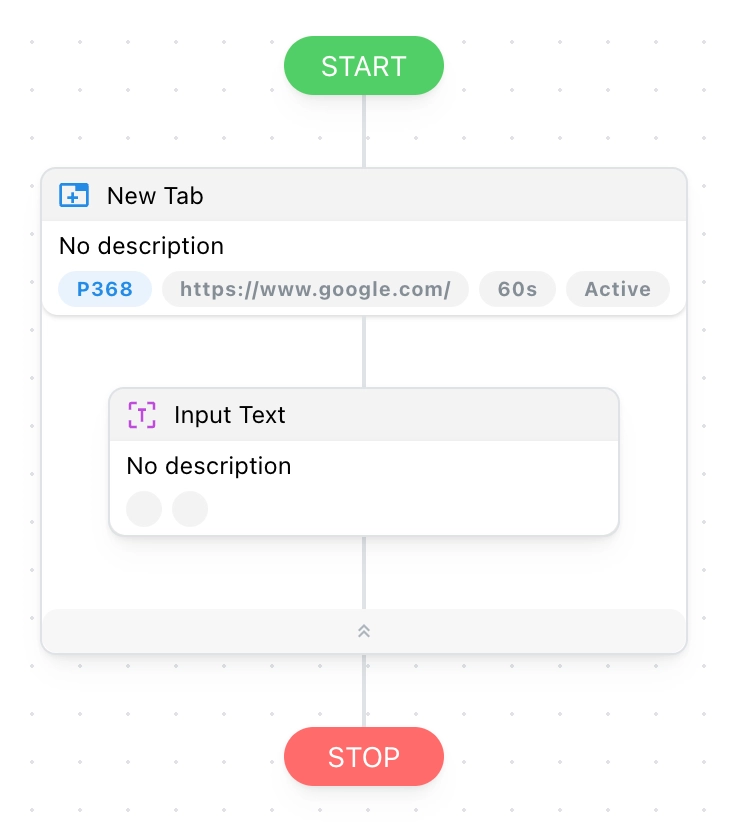
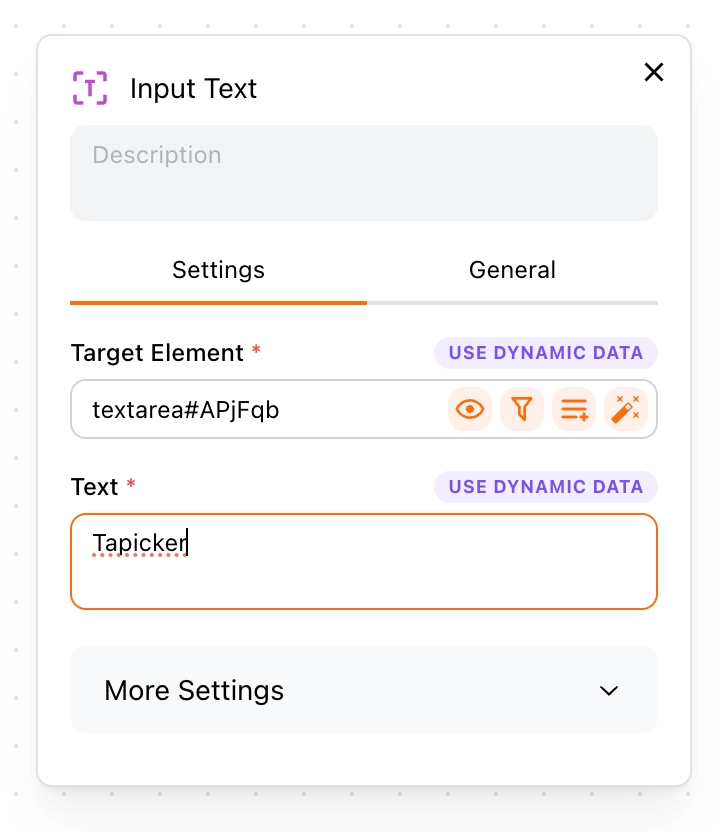
Drag the Input Text Block inside New Tab. This Block will type the search term for you.
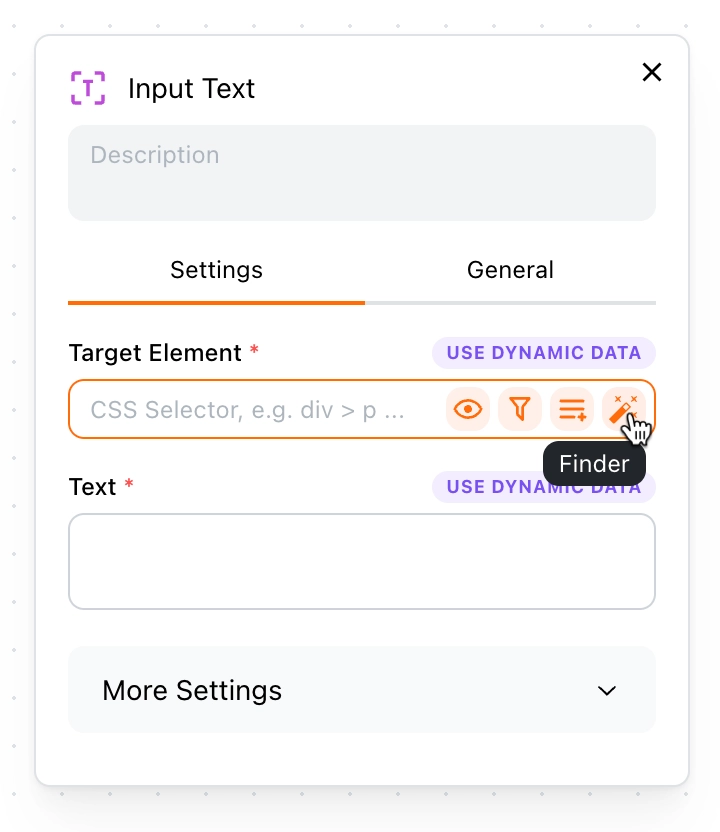
First, set its Target Element so Tapicker knows where to type. Click the Finder icon shown below to open Element Finder.
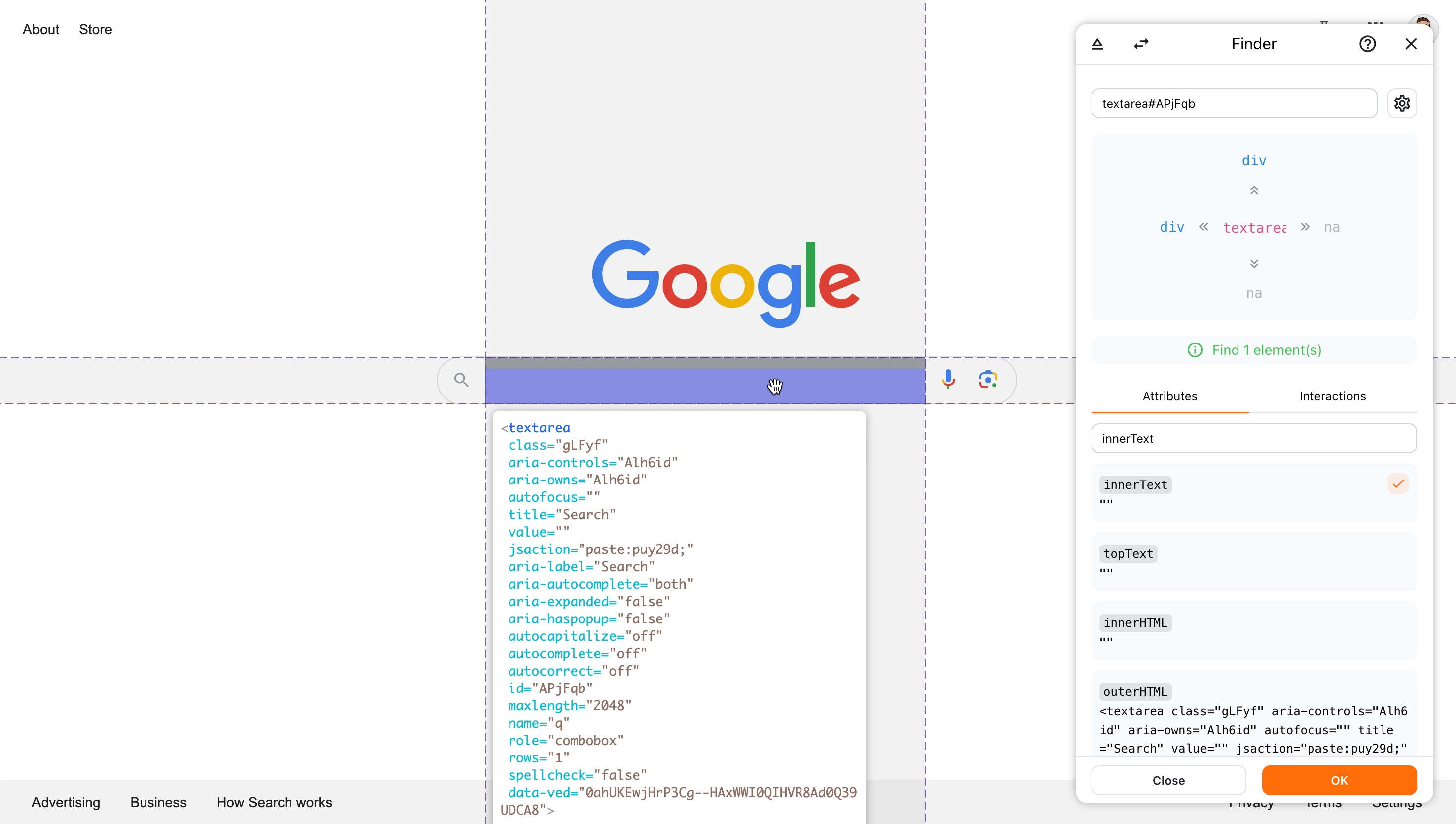
Select the search box on Google's page, then click OK to confirm your choice.
Enter Tapicker in the Text field.
Step 3. Press Enter to Search
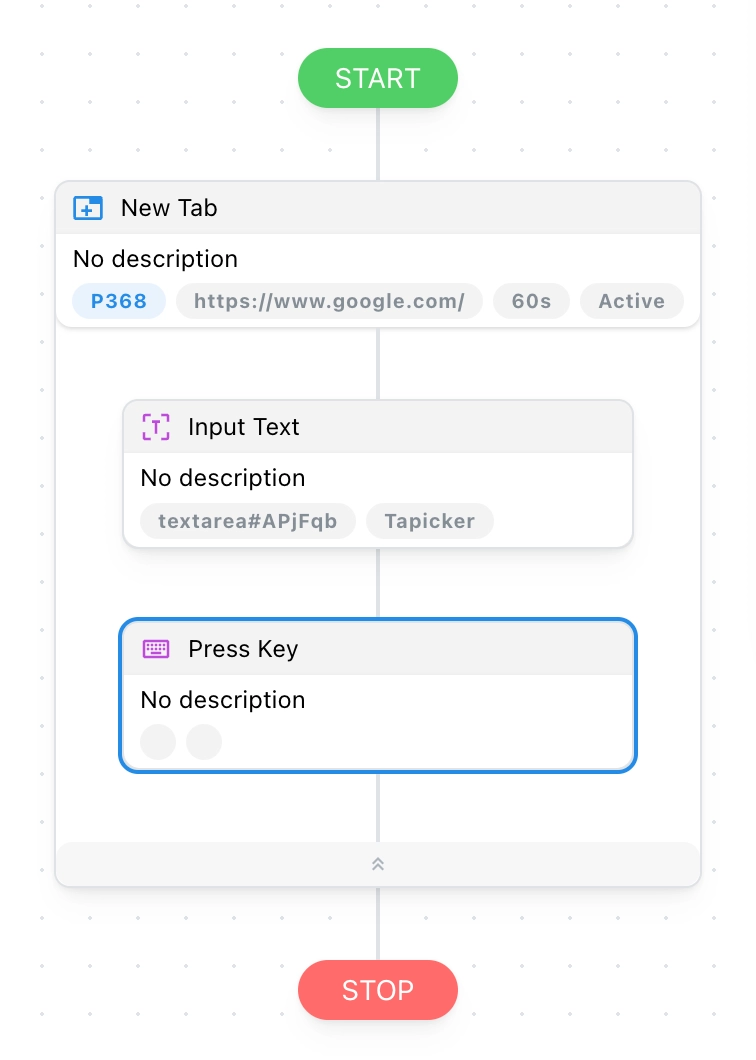
Next, drag the Press Key Block below Input Text, inside New Tab. It will press Enter after the text has been entered.
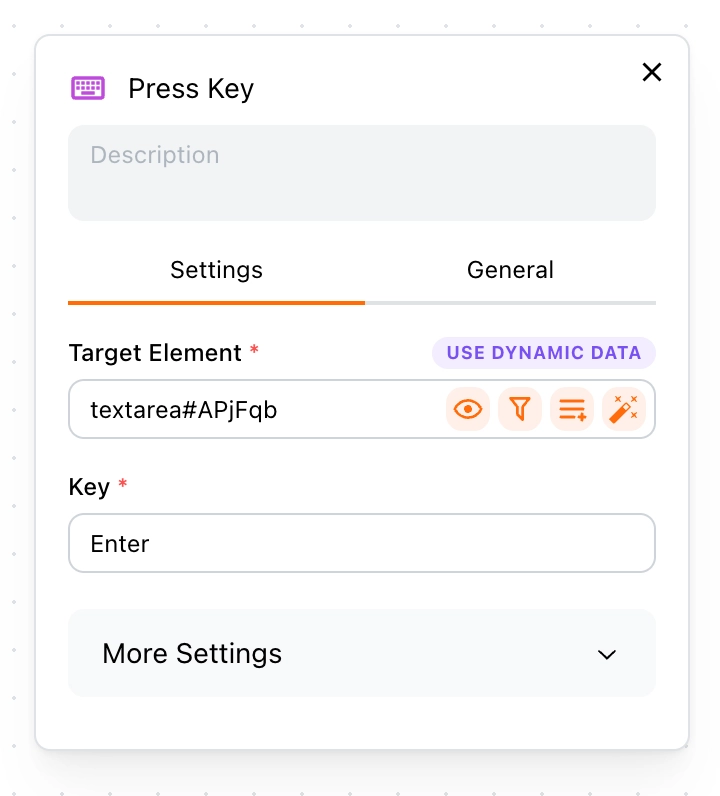
Set its Target Element to the same search box. Then click the Key field and press Enter on your keyboard.
Step 4. Keep the Tab Open
New Tab closes automatically after its inner Blocks finish. To give yourself time to see the search results, add a Sleep Block below Press Key, inside New Tab, and set its Duration to 10 seconds. This step is optional.
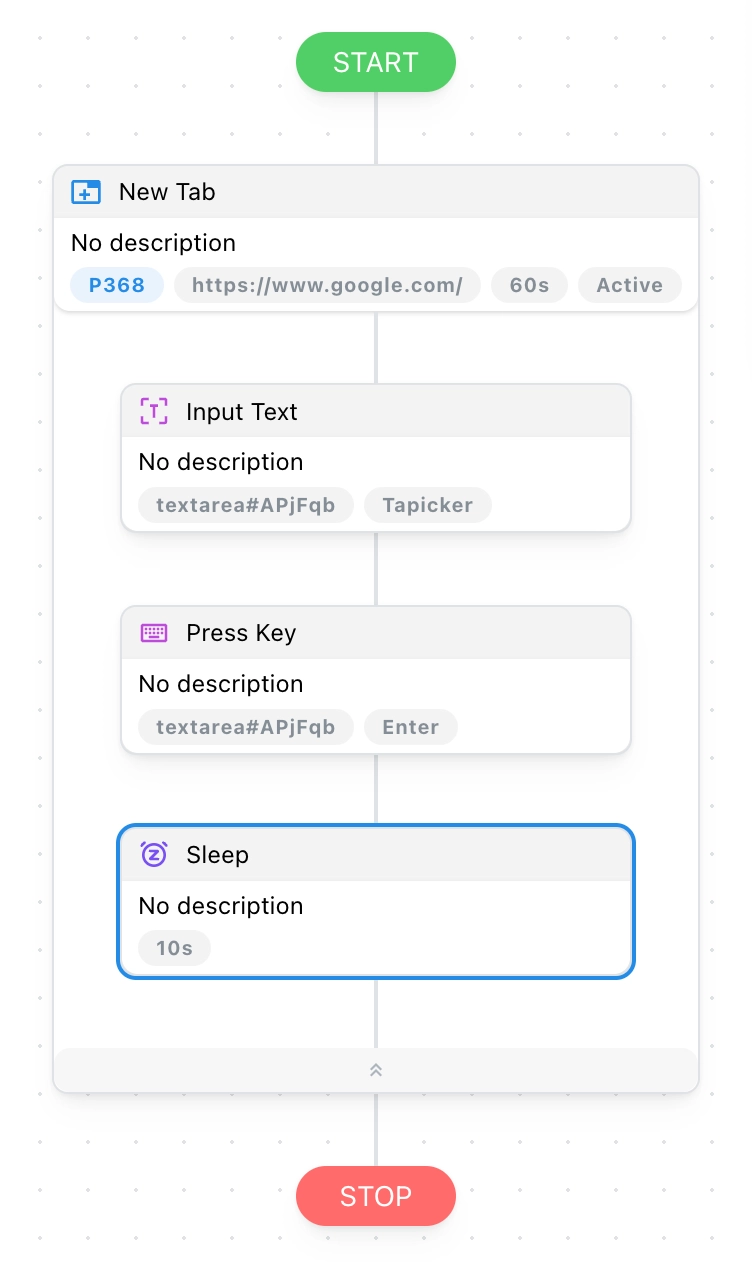
You can add a short note to each Block to remember what it does. Your Workflow should now look something like this:
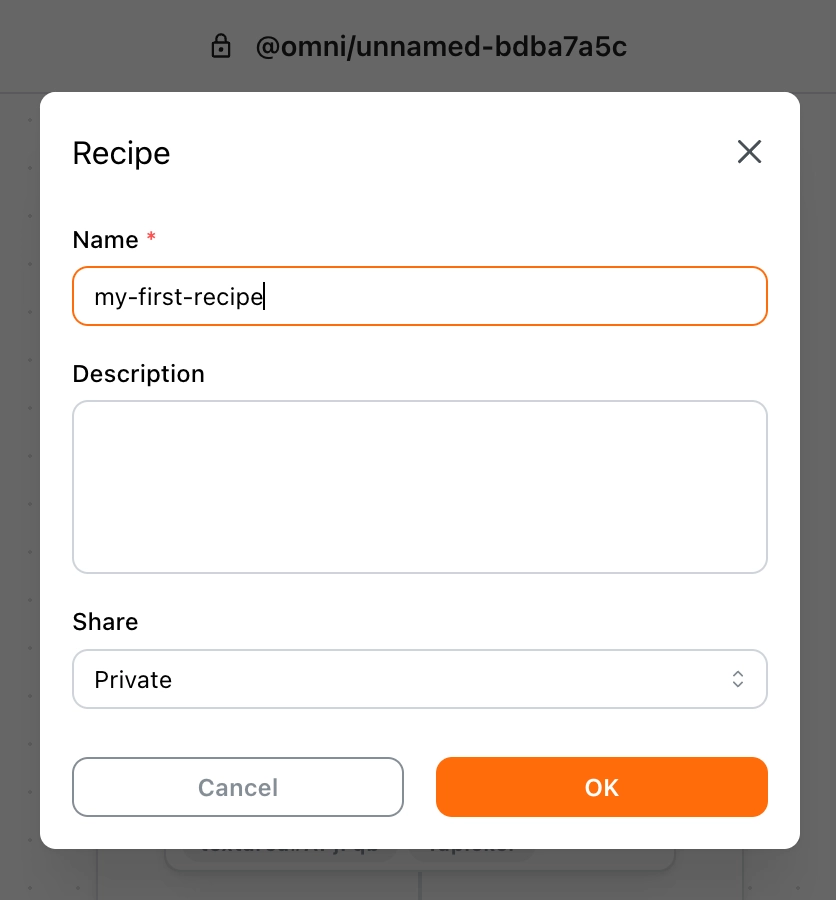
Give your Workflow a name, such as my-first-workflow.
Run the Workflow
Save your Workflow, then click Play. You should see Google open in a new tab, "Tapicker" appear in the search box, and the search results load. If you added Sleep, the tab will stay open for another 10 seconds before closing.
If something does not work as expected, check the Block order and confirm that both Input Text and Press Key target the search box.
What's Next
You've built and run your first Workflow. Try changing the search term in Input Text, then run it again to see how a small change affects the result.