Data Transformation
Data transformations are configured in the Workflow Editor to process a value before it is stored or used by a node. Add multiple transformations to apply them in sequence. Disabled transformations are skipped.
Transformations are separate from Template Syntax. The available transformations are a curated subset of the pipeline implementations and use form fields instead of inline function arguments.
Use Cases
For example, a value can be trimmed, matched with a regular expression, converted to a number, and then formatted as a date. Select a transformation type, fill in its fields, and use the preview to verify the result.
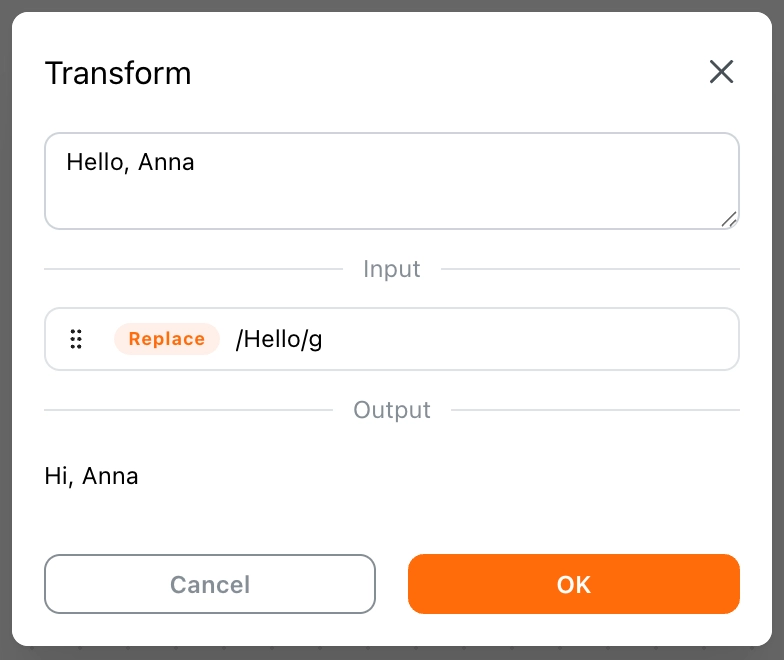
Text entered in transformation fields supports escaped characters such as \\n and \\t.
String
Trim
Removes whitespace from the start, end, or both sides of a string.
Position:Start,End, orBoth; defaultBoth.
" Anna " → trim(Both) → "Anna"
Split
Splits a string into an array.
Separator: The separator text.
"Anna,Nick" → split(",") → ["Anna", "Nick"]
Replace
Replaces matches of a regular expression.
Pattern: Regular expression.Replacement: Replacement text; defaults to an empty string.
"Hello, Anna" → replace(/Hello/g, "Hi") → "Hi, Anna"
Extract
Extracts regular-expression matches and joins them into a string.
Pattern: Regular expression.Separator: Text between matches; defaults to,.
"A1 B2" → extract(/\\d/g, ", ") → "1, 2"
Match
Returns the matches of a regular expression.
Pattern: Regular expression.
"A1 B2" → match(/\\d/g) → ["1", "2"]
Truncate
Limits a string to a specified length and appends a suffix when truncated.
Length: Maximum length; default100.Suffix: Defaults to....
Slice
Returns a portion of an array or string.
Start: Starting index; default0.End: Ending index; default3.
Wrap
Adds a prefix and/or suffix to a string. Each field is independent.
Prefix: Defaults to<.Suffix: Defaults to>.
"Anna" → wrap("<", ">") → "<Anna>"
Pad
Pads a string to the specified length.
Position:Start,End, orBoth.Length: Target length; default10.Character: Fill character; default is a space.
"42" → pad(Start, 5, "0") → "00042"
toUpper
Converts a string to uppercase.
toLower
Converts a string to lowercase.
Array
These transformations also support strings where the underlying pipeline function supports string sequences.
At
Returns the item at the specified index.
Index: Index; default0.
Join
Joins an array into a string.
Separator: Separator text; default,.
Size
Returns the length of a string or the number of elements in an array.
Sort
Sorts an array or string sequence.
Sort By
Sorts array items by a nested value.
Path: A path such asfoo.bar.
Unique
Removes duplicate values from an array.
Unique By
Removes duplicate array items using a nested value.
Path: A path such asfoo.bar.
Compact
Removes empty values such as null, undefined, and empty strings from an array.
Compact By
Removes array items whose nested value is empty.
Path: A path such asfoo.bar.
Shuffle
Randomizes the order of an array or string sequence.
Reverse
Reverses an array or string sequence.
Sample
Selects random items from an array or string sequence.
Count: Number of items; default1.Mode:KeeporDrop; defaultKeep.
Chunk
Splits an array or string sequence into chunks.
Size: Chunk size; default3.
Group By
Groups array items by a nested value and returns an object.
Path: A path such asfoo.bar.
Flatten
Flattens nested arrays.
Depth: Flatten depth; default1.
Object
Get
Reads a nested value from an object.
Path: A path such asfoo.bar.
Unlike the Template pipeline function, the Transform form does not expose a fallback field.
Keys
Returns the object's own property names.
Values
Returns the object's own property values.
Entries
Returns the object's key-value entries.
Number
Abs
Returns the absolute value.
Ceil
Rounds up to the nearest integer.
Floor
Rounds down to the nearest integer.
Round
Rounds to the nearest integer.
Fixed
Formats a number with a fixed number of decimal places and returns a string.
Digits: Number of decimal places; default2.
Date
toISOString
Converts a date to an ISO 8601 string.
toTimestamp
Converts a date to a timestamp.
Unit:msors; defaultms.
Format
Formats a date using a Day.js format string.
Template: For example,YYYY-MM-DD HH:mm:ss.
Encoding
Encode
Encodes a value using the selected encoding.
Encoding:URL,JSON, orBase64.
Decode
Decodes a value using the selected encoding.
Encoding:URL,JSON, orBase64.
toDataURL
Converts an image URL to a self-contained Data URL. If the value is an array, each item is converted independently.
Context:PageorExtension; defaults toPage.
For Page, the request runs in the frame where the target element was found, so page cookies and the page's request context are available. For values without an element target, the main frame of the current tab is used. Extension performs the request from the Extension context using its host permissions and credentials.
"https://example.com/image.png" → toDataURL(Page) → "data:image/png;base64,..."
Data URLs avoid requesting the original image URL again, but increase the size of the value. Use this transformation selectively for large images.
RegExp
Test
Tests whether a string or every item in an array matches a regular expression.
Pattern: Regular expression.
General
toString
Converts values to text. Plain objects are serialized as JSON and dates use ISO text. Array inputs are processed item by item and remain arrays.
toNumber
Converts a value to a number.
toBoolean
Converts a value to a boolean.
toArray
Converts an array value or a JSON array string to an array. Invalid input produces an empty array.
toObject
Converts an object value or a JSON object string to a plain object. Invalid input produces an empty object.
toDate
Converts a value to a Date object.