Know the Workflow
Workflows are how you automate tasks in Tapicker. You can run one that's been shared with you or build your own. This guide shows you where to find Workflows and what you can do with them.
What Is a Workflow?
A Workflow is a sequence of Blocks that carries out a task. For example, it might open a page, enter a search term, and collect the results. You can run the same Workflow again whenever you need it.
Your Workflows are saved to your account, so you can access them on another device when you sign in.
Find Your Workflows
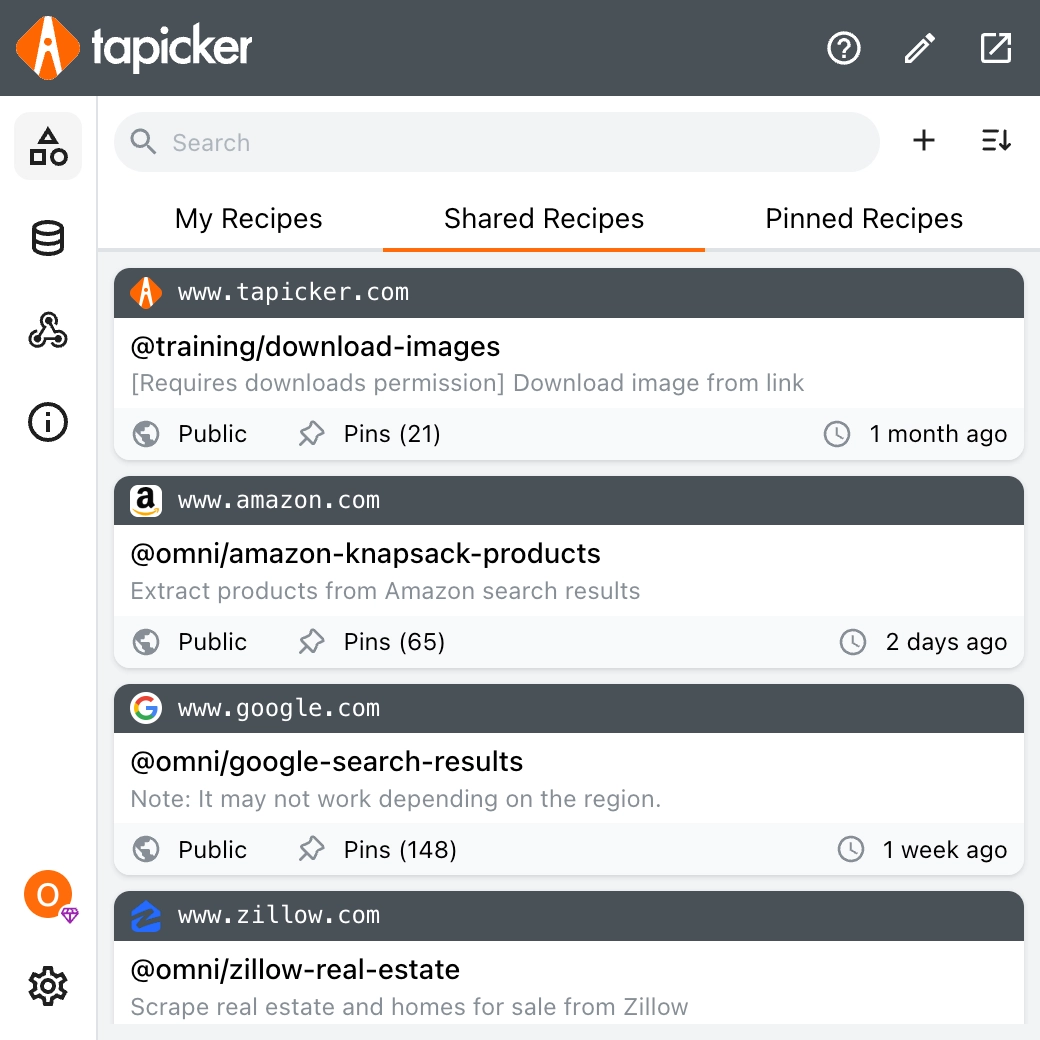
Open Workflows in the Tapicker Dashboard. The list has three tabs:
- Created: Workflows you've created.
- Shared with Me: Public Workflows and Workflows shared with you directly.
- Favorites: Workflows you've marked as favorites for quick access.
What you can do with a shared Workflow depends on the permission its owner gave you: Use, View, or Edit.
Run a Workflow
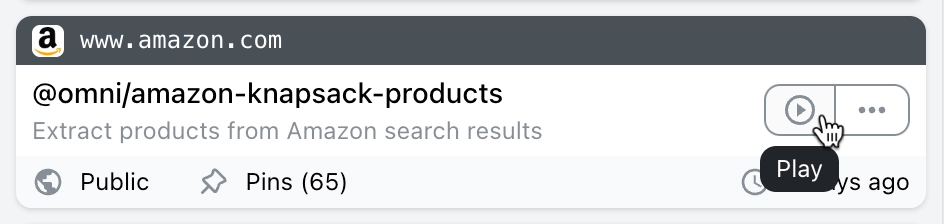
Hover over a Workflow card and click Play.
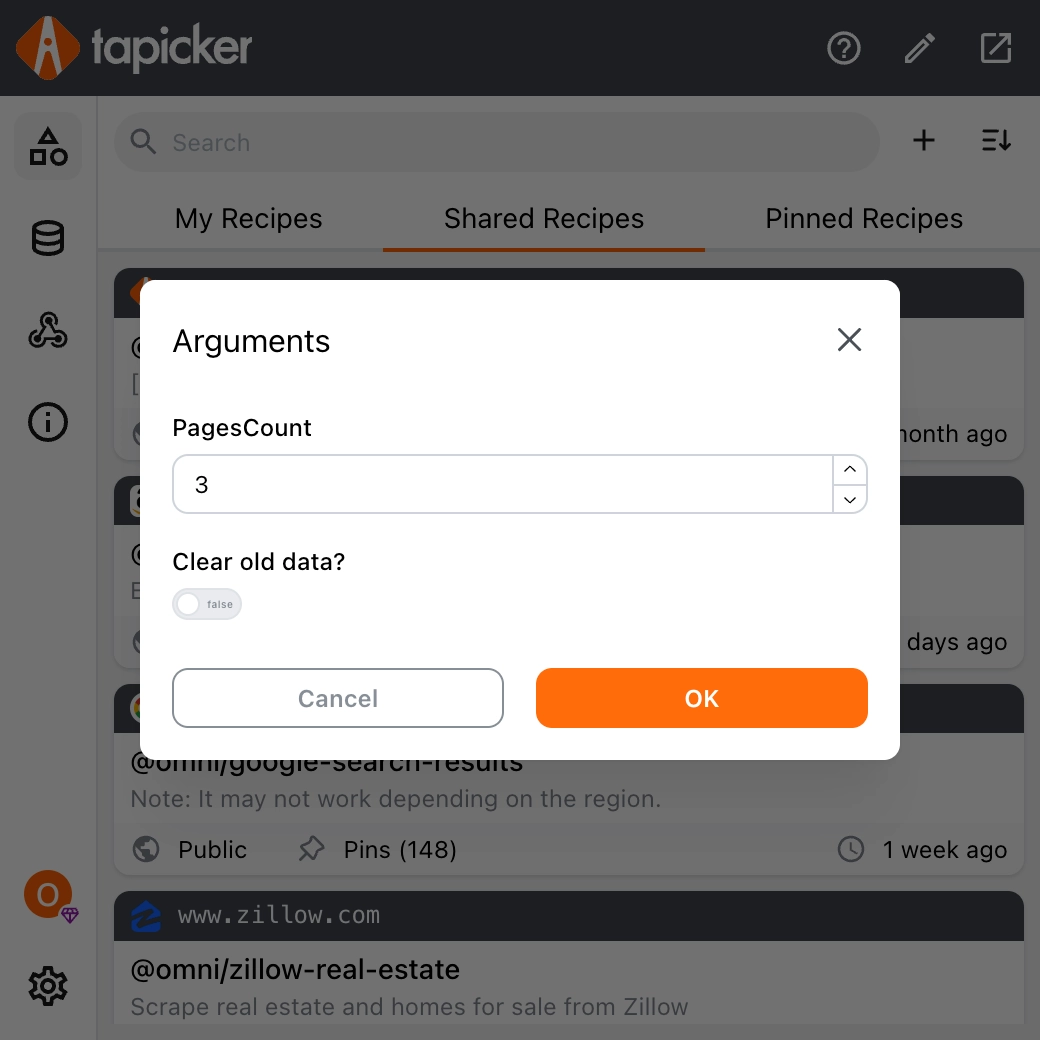
If the Workflow asks for inputs, enter the values you want to use and click OK. Some Workflows start without asking for anything.
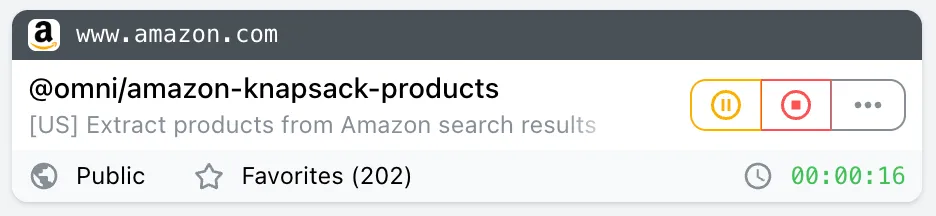
While the Workflow runs, its card shows the elapsed time and controls to pause or stop it. You can resume it after pausing.
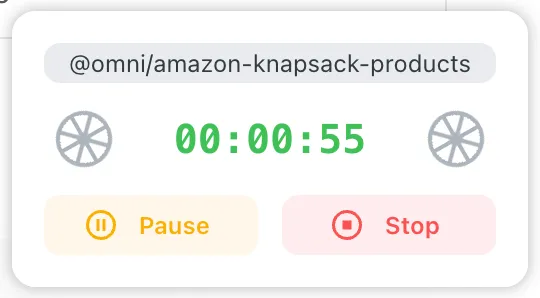
If you turn on Settings > General > Controller, a control widget also appears on the page. It shows the elapsed time and lets you pause, resume, or stop the Workflow without returning to the Dashboard.
Share a Workflow
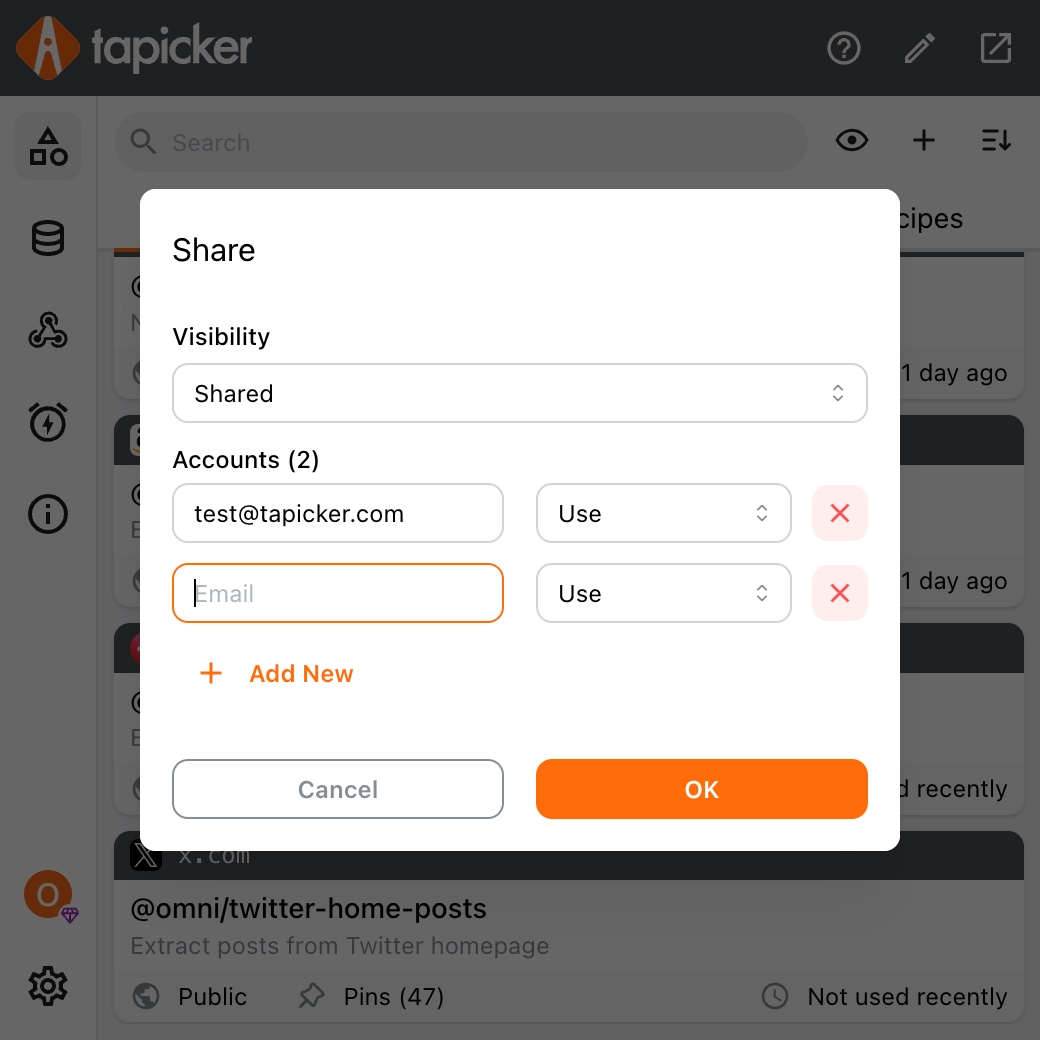
To share a Workflow you've created, open its More menu and choose Share. Set its visibility to Public to make it available to everyone, or choose Shared to invite specific Tapicker users by email. For each invited person, choose whether they can Use, View, or Edit the Workflow. Sharing requires a Pro plan.
Build a Workflow
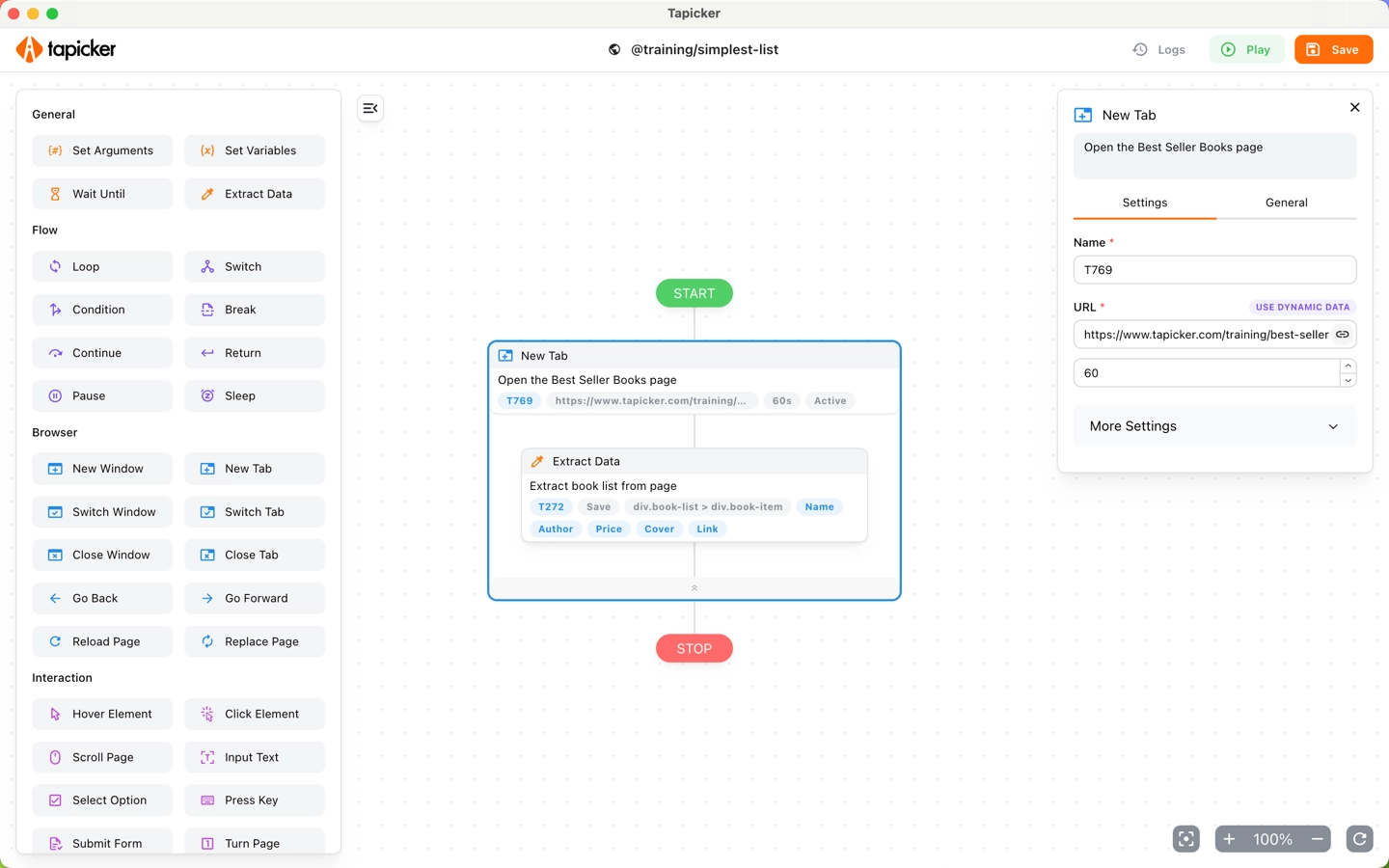
If an existing Workflow doesn't quite fit your task, you can create your own. Open the Workflow Editor, then drag Blocks onto the canvas and configure each step.
Follow Create your First Workflow for a guided example.