Scroll Page
In this section, we will guide you on how to use the Scroll Page block.
Use Cases
Scroll Page is a common operation in RPA, especially when handling long web pages or document content. When content exceeds the visible screen area, scrolling is needed to view the entire content.
Scroll Page Use Cases:
- Web Data Extraction:
- Infinite Scrolling Pages: Many social media and news websites use infinite scrolling to load content. RPA can simulate user scrolling to continuously load new content, enabling extensive data extraction.
- Dynamic Content Loading: Some web pages load content dynamically with JavaScript, displaying elements only when scrolled into view. RPA can trigger this content loading by scrolling, making it available for extraction.
- Form Filling:
- Long Forms: For long forms that require multiple scrolls to access each field, RPA can automatically scroll to each input field’s position for filling.
- Software Testing:
- Page Content Validation: By scrolling through a page, RPA can check if all elements display correctly and if there are any layout issues.
- Simulating User Behavior: In software testing, simulating user scroll actions can help uncover hidden bugs.
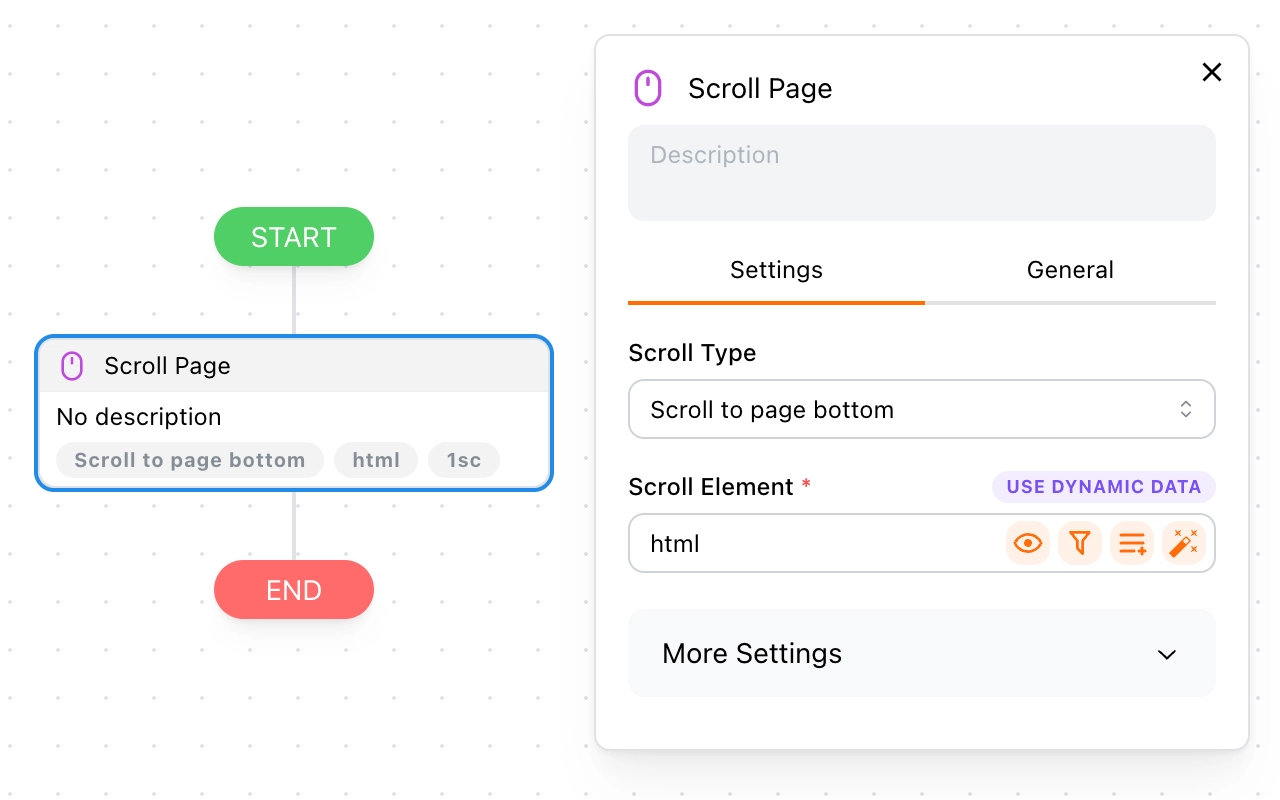
Scroll Type
Tapicker offers four scroll types to choose from:
- Scroll to element boundary: Scrolls to the start or end boundary of the selected scroll element. A positive step scrolls toward the end, while a negative step scrolls toward the start.
- Scroll to element position: Scrolls until an anchor element reaches its position within the selected scroll element.
- Scroll to specified position: Scrolls to an absolute position on the selected scroll element.
- Scroll from current position: Scrolls one step from the current position.
Next, let’s cover each type in detail.
1. Scroll to element boundary
Set the Scroll Element, which defaults to html and normally represents the whole page. You can select another element for localized scrolling. If the selected element cannot scroll, Tapicker uses the nearest scrollable element around it.
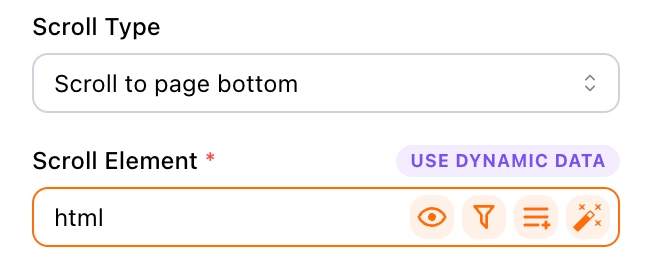
For tips on setting target elements, see the Target Element section.
2. Scroll to element position
Set the Scroll Element and an Anchor Element. Tapicker scrolls until the anchor reaches its position inside the scroll element.
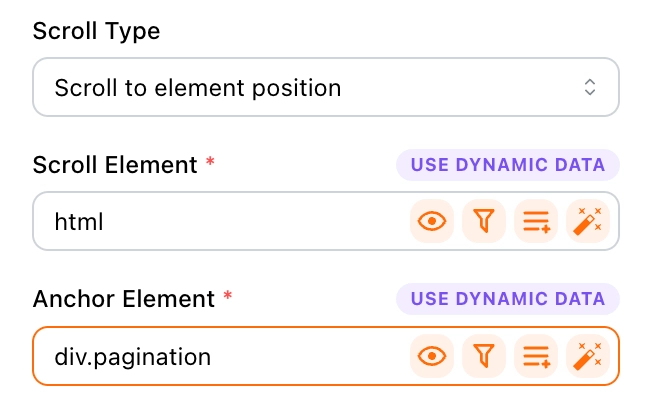
For tips on setting target elements, see the Target Element section.
3. Scroll to specified position
Set Position to the desired scroll position in pixels. 0 represents the start of the scroll element. Values outside the available scroll range are adjusted to the nearest boundary.
You can use Template Syntax to calculate the position dynamically. For example, the following expression chooses a position between 500 and 2000 pixels:
{{getRandomNum(500, 2000)}}
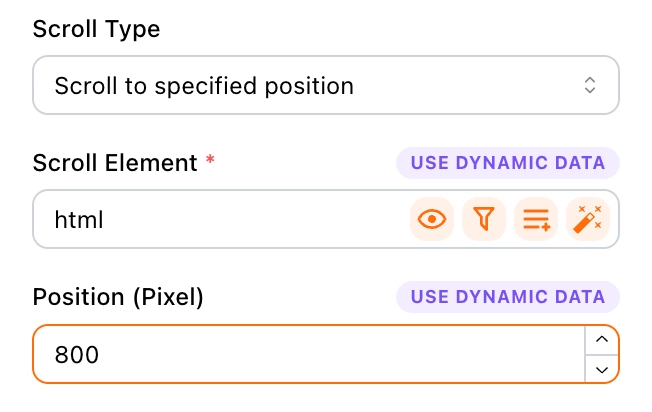
For tips on setting target elements, see the Target Element section.
4. Scroll from current position
Set the Scroll Element and Scroll Step. Each execution scrolls one step from the current position. This scroll type is ideal for use with the Loop block to achieve infinite scrolling.
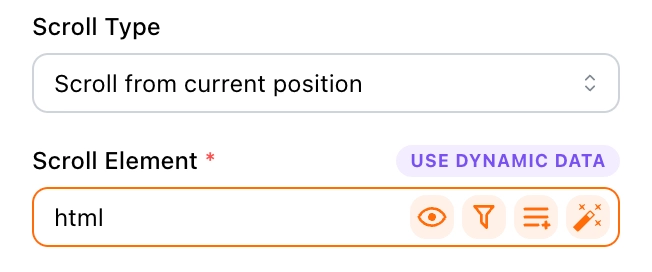
For tips on setting target elements, see the Target Element section.
More Settings
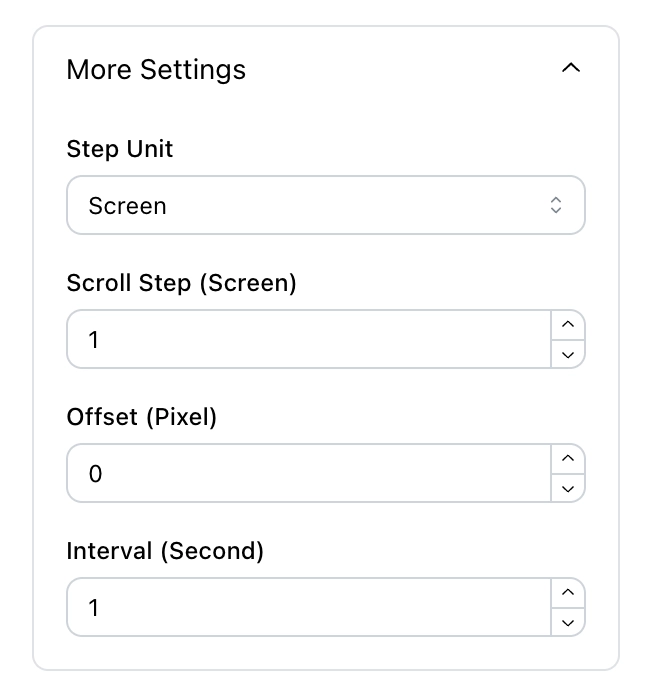
To mimic human behavior, scrolling is performed in steps. In More Settings, you can customize the direction, step unit, step size, offset, interval, trigger mode, and whether to simulate human behavior.
Direction
You can choose between two directions:
- Vertical: Scrolls up or down.
- Horizontal: Scrolls left or right.
The selected scroll element must support scrolling in the chosen direction.
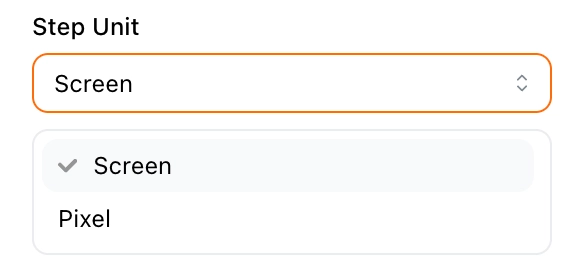
Step Unit
You can choose between two step units:
- Screen: Represents the visible height or width of the selected scroll element.
- Pixel: Uses pixels as the unit of movement.
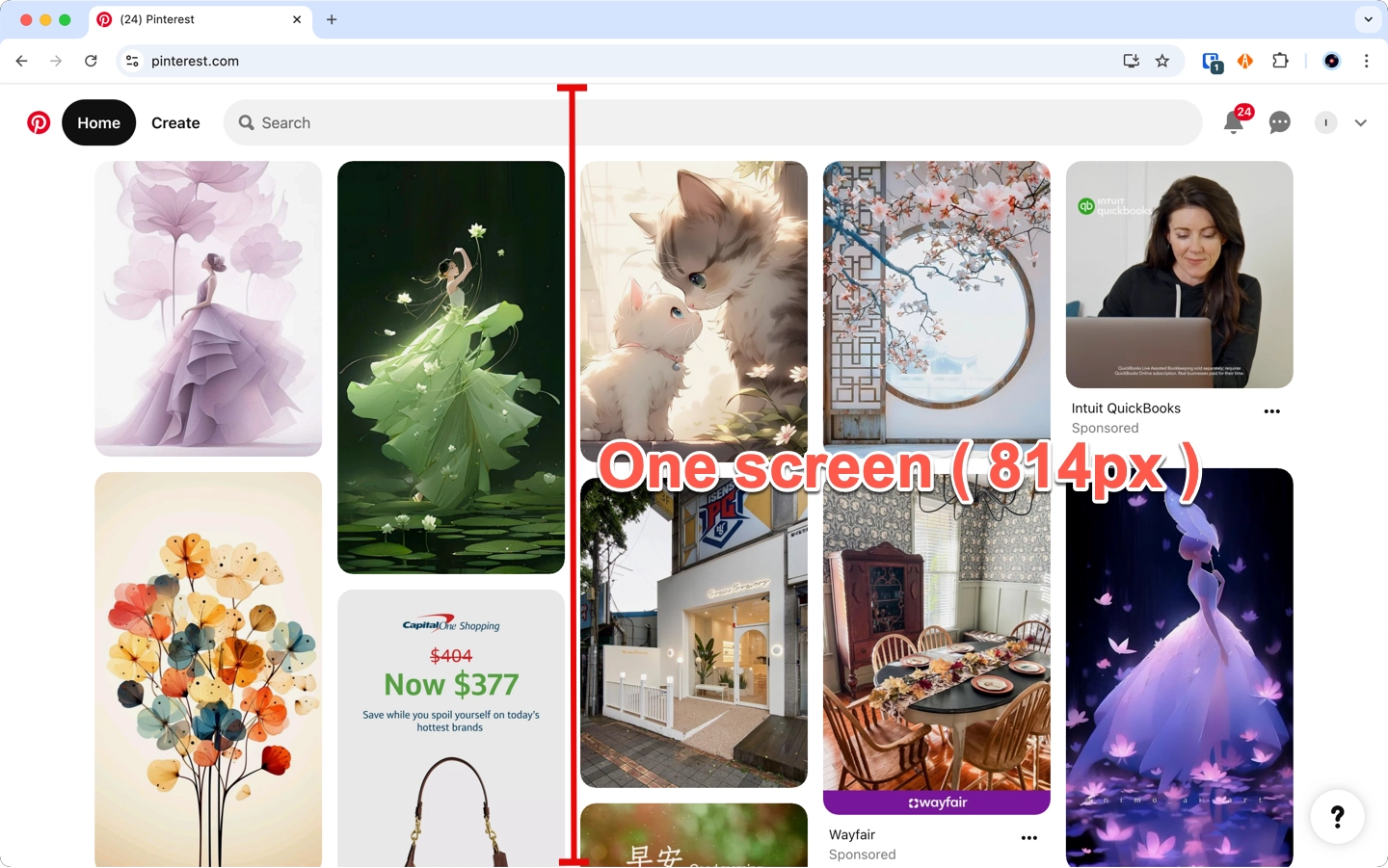
For example, if the visible height of a scroll element is 814 pixels, a step of 1 with the Screen unit moves approximately 814 pixels.
Scroll Step
Set an appropriate scroll step based on the Step Unit. Positive values scroll down or right; negative values scroll up or left.
For Scroll to element boundary, Scroll to element position, and Scroll to specified position, Tapicker repeats the steps until it reaches the destination. Scroll from current position performs one step per execution.
Offset
Add or subtract pixels from the destination position to fine-tune the final position. This option applies to the first three scroll types.
Example
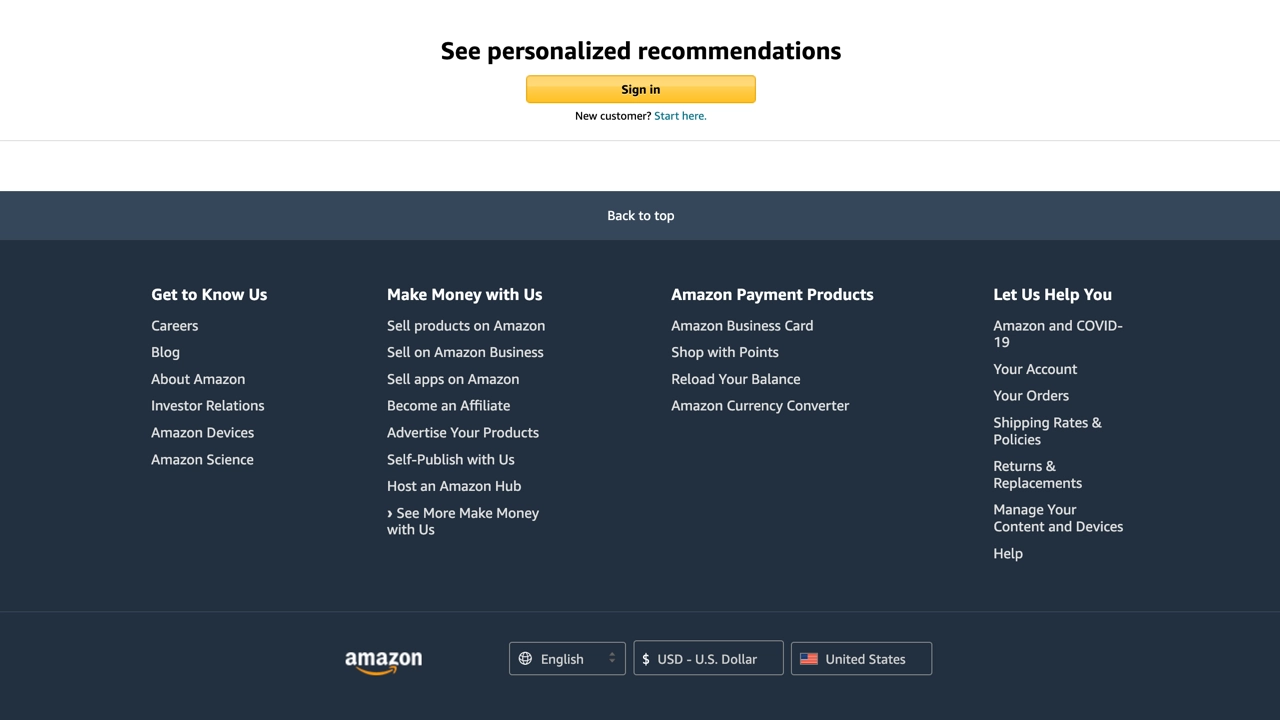
If you choose Scroll to element boundary but want to stop before the footer, set an offset to avoid it. For example, if the footer height is 420px, set the offset to -420.
Interval
The interval specifies the wait time, in seconds, between repeated scroll steps. It is used when scrolling to a boundary, element position, or specified position.
Trigger Mode
You have two trigger modes to choose from:
- Script: Simulates scrolling with page-side events. It is lighter and faster, but some websites may ignore synthetic input.
- Debugger: Simulates scrolling with browser-level input. It consumes more resources, but is more compatible with pages that do not respond to script-based scrolling.
Which Should I Choose?
It is recommended to start with Script. If the page does not respond as expected, enable Simulate Human Behavior and try again. If it still does not work, use Debugger as the last resort.
Simulate Human Behavior
This option is available only when the trigger mode is set to Script. When enabled, Tapicker scrolls the selected target into view when needed and may move the simulated cursor within the visible scroll area before scrolling.
Debugger mode performs this preparation automatically, so this option is not shown for that mode.
FAQ
Why can’t I scroll to the actual page bottom?
This can happen when the page loads more content while scrolling. The page becomes taller after the block calculates its destination. For infinite-scrolling pages, use Scroll from current position together with the Loop block.
What happens when reaching the bottom of the page?
When the scroll position no longer changes, the block reports that it cannot scroll further. In an infinite-scrolling workflow, use this result to stop the loop when no more content is loaded.
Why does the selected element not scroll?
Make sure the selected element can scroll in the chosen direction. If it is only a wrapper element, Tapicker searches for the nearest scrollable element around it. You can also try selecting the actual scroll container.
Can I scroll in reverse from bottom to top?
Sure! Set the Scroll Step to a negative number.
Why is my browser showing "xxx started debugging this browser"?

This happens when you select Debugger as the trigger mode. Chrome needs to enable a debugging session to send browser-level input. If you manually cancel it, the workflow will fail. Normally, the debugging session closes after the workflow completes.