Move Cursor
In this section, we will guide you on how to use the Move Cursor block.
Use Cases
The Move Cursor block moves the cursor along a smooth, human-like path without clicking or selecting an element. It is useful when moving the cursor itself is part of the workflow or when a website responds to cursor movement.
Common use cases:
- Reveal a dropdown menu or tooltip by moving over an area of the page.
- Move through a specific sequence of points before the next interaction.
- Reproduce a cursor movement used in a visual workflow or demonstration.
- Move the cursor to a random location in the viewport without targeting an element.
How to Use
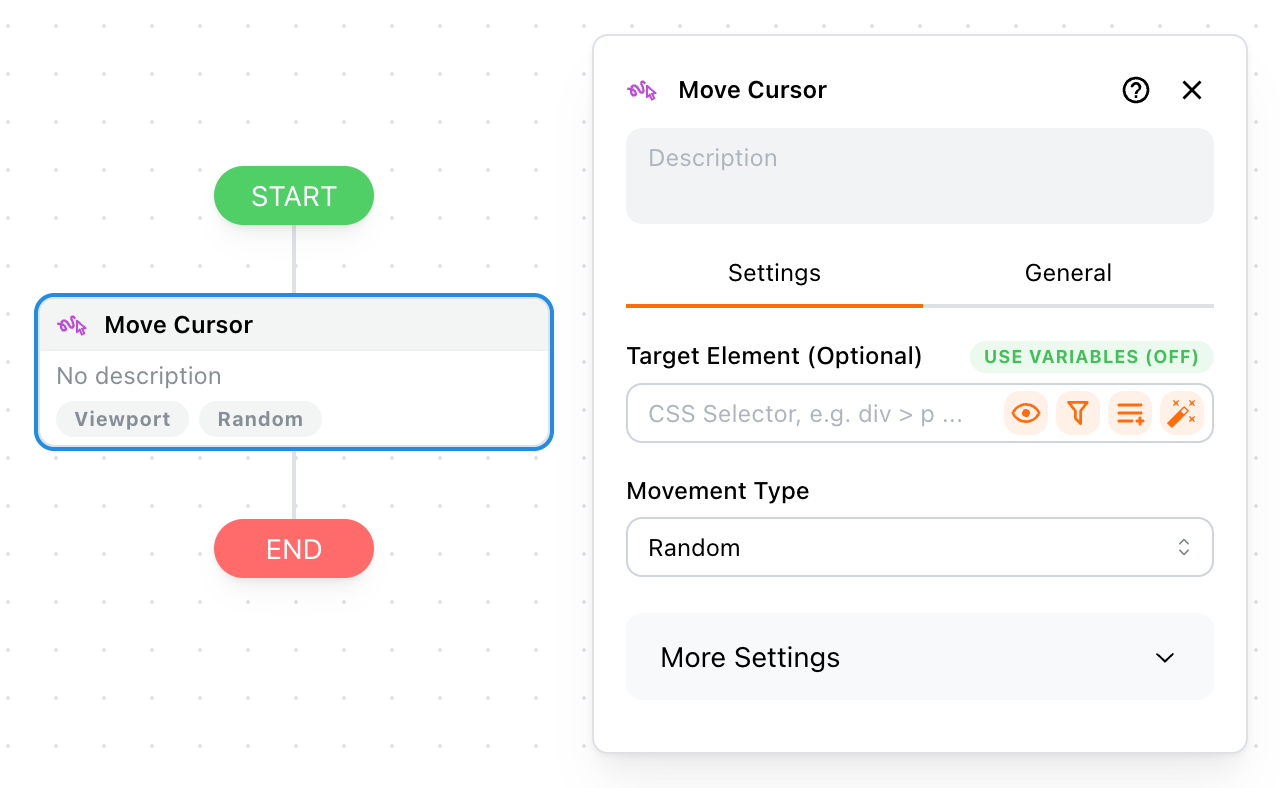
Add the Move Cursor block to your workflow. The target element is optional:
- If no target element is set, movement is generated within the page viewport.
- If a target element is set, movement is constrained to the visible area shared by the target and the viewport.
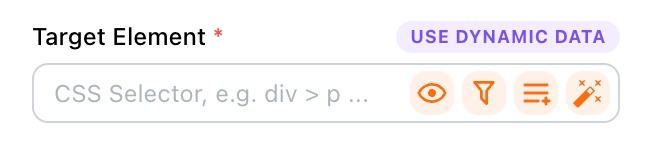
The target element uses a CSS Selector. You can enter a selector manually or use Template Syntax for a dynamic target. For more information, refer to the Target Element section.
Movement Type
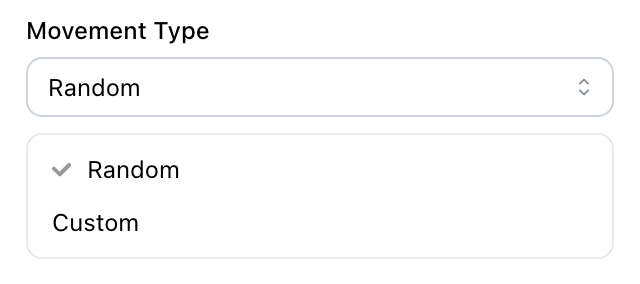
The Movement Type option controls how the destination points are selected:
- Random: Tapicker generates a smooth path automatically. It randomly chooses either a direct movement or a two-segment movement through an intermediate point.
- Custom: You provide one or two key coordinates. Tapicker generates the smooth curves between those points at runtime.
Key Coordinates
In Custom mode, enter one or two coordinate objects as JSON. Coordinates are relative to the current frame's viewport, not to the full page or the screen:
[
  { "x": 320, "y": 240, "sleep": 0.5 },
  { "x": 680, "y": 420 }
]
Each coordinate object contains:
x: Horizontal viewport coordinate.y: Vertical viewport coordinate.sleep: Optional delay after reaching the coordinate, in seconds. For example,0.5means half a second.
Tapicker generates the intermediate points of each smooth curve automatically. When two coordinates are provided, it moves to the first coordinate, waits for its sleep value when configured, and then moves to the second coordinate. If an intermediate coordinate has no sleep value, a short random delay is used.
The field also supports Template Syntax. The referenced variable can resolve to the coordinate array itself or to a JSON string containing the array:
{{$vars.cursorPath}}
The editor only checks that the field is not empty. The value is parsed when the workflow runs, so invalid JSON, missing variables, invalid coordinates, or invalid sleep values cause the block to fail at runtime.
More Settings
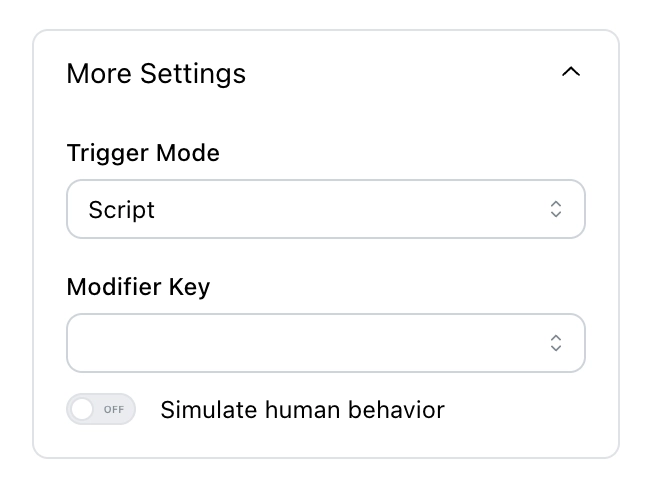
In the additional settings, you can choose the trigger mode, modifier keys, and whether to simulate human behavior.
Trigger Mode
You have two trigger modes to choose from:
- Script: Uses page-side JavaScript to dispatch cursor movement and hover events. It is lighter and faster, but some websites may ignore synthetic events.
- Debugger: Uses the browser's debugger to send mouse movement through Chrome DevTools Protocol. It consumes more resources, but the movement is closer to browser-level mouse input.
Which Should I Choose?
It is recommended to start with Script. If the page does not respond to the movement, enable Simulate Human Behavior and try again. If it still does not work, use Debugger as the last resort.
Modifier Key
You can hold down modifier keys while the cursor moves. The following keys are available:
⇧ Shift:Shifton Windows.⌃ Control:Ctrlon Windows.⌥ Option:Alton Windows.⌘ Command:Winon Windows.⌘ Command ↔︎ Control: Cross-platform compatibility—⌘ Commandon macOS andCtrlon Windows.
Modifier keys are passed along with the generated movement events. They are useful when a page changes its behavior based on a key being held while the cursor moves.
Simulate Human Behavior
This option is available only when the trigger mode is set to Script. When enabled and a target element is configured, Tapicker scrolls the target into view before calculating the movement area. Debugger mode always performs this interactive target inspection.
The Move Cursor block always performs its configured cursor movement. This option controls target preparation in Script mode; it does not turn the Move Cursor block into a no-op.
If a configured target is outside the viewport and this option is disabled, the target may be unavailable and the block can fail. Leave the target empty when the movement should use the whole viewport.
FAQ
Why did the block fail when the target element is outside the viewport?
In Script mode, enable Simulate Human Behavior so Tapicker can scroll the target into view before calculating its movement area. Alternatively, use Debugger, which always performs this preparation.
Why does the cursor not appear visibly on the page?
Script mode dispatches page-side cursor and hover events; it does not necessarily draw a visible browser cursor. Use the browser's normal cursor or Tapicker's virtual cursor display when you need to observe the movement visually.
Why did my custom path fail at runtime?
Make sure the value resolves to one or two coordinate objects with numeric x and y values. If sleep is provided, it must be a non-negative number in seconds. Also make sure the referenced variable exists when the block runs.
Why is my browser showing "xxx started debugging this browser"?

This happens when you select Debugger as the trigger mode. Chrome needs to enable a debugging session to send browser-level mouse input. If you manually cancel it, the workflow will fail. Normally, the debugging session closes after the workflow completes.