Use Variables
Variables let a Workflow use a value that can change from one run to the next. This guide shows you which fields accept variables and how the editor helps you add and change them.
To learn how to create and update variables, and understand where they are available during a run, see Variables.
What Are Variables?
Suppose you save a search term with the Set Variables Block. Instead of typing that term again in a later Block, you can refer to the variable. If its value changes, the later Block uses the new value when the Workflow runs.
Tapicker writes a variable reference inside an expression, between {{ and }}. For example, if you named the variable searchTerm, its reference is {{$vars.searchTerm}}. You can select it from the editor's suggestions; you do not need to memorize the syntax.
Find a Field That Accepts Variables
Look for a label above the field:
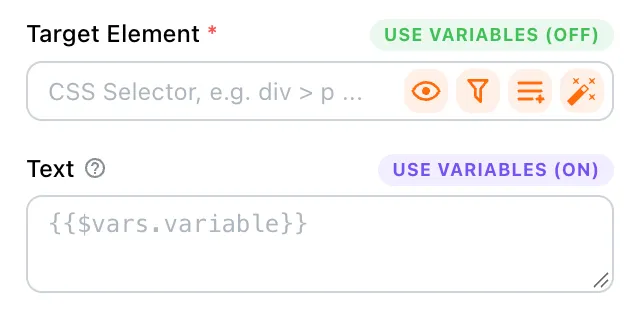
USE VARIABLES (OFF)means the field currently accepts a fixed value. Click the label to turn variables on. It changes toUSE VARIABLES (ON), and you can enter an expression. Click it again to return to the fixed-value input.VARIABLES AVAILABLEmeans you can use variables in that field already. There is no mode to switch.
These fields have a USE VARIABLES switch: Click the label to switch between fixed values and expressions.
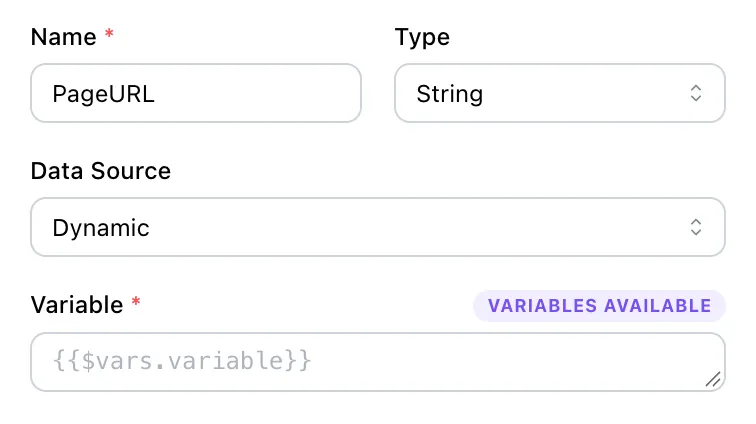
You may see VARIABLES AVAILABLE in a column whose data source is Dynamic in Set Variables or Extract Data. It also appears in fields such as Variable in a Loop Block and Body in an HTTP Request Block.
Insert a Variable
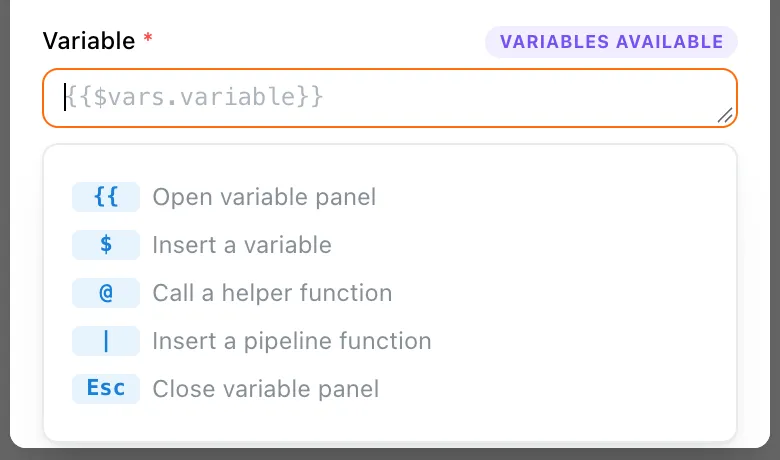
Once the field accepts variables, place the cursor in it. The editor shows a hint with the characters you can type to open suggestions:
Start an Expression
Type {{ to open the variable suggestions. Choose a variable, and the editor completes its reference for you.
Insert a Variable Inside an Expression
If you are already inside {{ ... }}, type $ to open variable suggestions at the cursor. This is useful when passing a variable to a function or using one to choose an object property.
Press Esc whenever you want to close the suggestion panel.
Add a Function
Expressions can do more than read a variable. You can call a helper function or apply a pipeline function to a value.
Call a Helper Function
Inside an expression, type @ to open the helper function suggestions. Choose a function, and the editor inserts the call. The @ is a shortcut for finding a function; it is not part of the completed expression.
Add a Pipeline Function
Type | after a value in an expression to see pipeline functions. Choose one to pass the value through that function.
For more examples of expressions, helper functions, and pipeline functions, see Template Syntax.
Edit an Expression
You can use the same suggestions to change an expression you have already entered.
Replace a Variable or Function
Place the cursor on an existing variable or function. The editor recognizes it and opens the matching suggestion panel. Choose another item to replace it.
Replace the Whole Expression
Select the entire expression, including {{ and }}. Choose a variable from the suggestions to replace the selection with its reference.
Find a Suggestion
If the list is long, type a keyword after $, @, or | to narrow the suggestions to the variable or function you need.